



Summary
QuickBooks Online cannot mail customer statements automatically. It creates Balance Forward, Open Item and Transaction statements and lets you email or print them, but it has no schedule and no way to route a statement to a printer or mail service. Paidnice's Override Destination Email setting sends the statement PDF to a printer or print-and-mail provider on schedule.
- The gap: No scheduled statement run, no routing to a mail provider, and statements go by email only, so a customer with no email address gets nothing unless someone prints and posts it.
- The fix: Set Override Destination Email on a Paidnice Statement Policy to your printer's email-to-print address or to a provider such as PostGrid, Stannp, Lob or Docsaway.
- The pattern: Run two policies on the same schedule: one emails customers with an address, the other posts to everyone tagged post-only or with no email on file.
Can QuickBooks Online mail customer statements automatically?
No. QuickBooks Online can generate a customer statement and print or email it, but it has no setting that posts one by mail and no schedule that runs statements on the same date each month. Intuit's help article Create and send customer statements in QuickBooks Online describes three statement types: Balance Forward (invoices, payments and the current balance for a date range), Open Item (all unpaid invoices from a start date to the present) and Transaction Statement (all transactions in a date range). The run ends with Save and send, or Print or Preview. What you cannot do natively is:
- Schedule statements to generate and send automatically on the same date each month
- Route statements to a printer or mailing service without a person handling the PDF
- Send a statement to a customer who has no email address on file
- Send statements to a different destination than the customer's stored email
Three kinds of customer make that gap expensive: a long-standing account that has paid off printed statements for fifteen years, a customer whose AP process requires a mailed statement (a government body, a school, a larger industrial client), and a customer you never collected an email for. In all three cases the fix is not better email. The fix is getting a printed statement into the post every month without it being anyone's personal job.
Free: Payment reminder email templatesCopy the reminder emails for before, on and after the due date.What do QuickBooks users do to post statements, and why does it break?
Most QuickBooks Online businesses post statements with a manual monthly routine, and the routine depends on one person remembering to run it. The common version is:
- Generate statements in QuickBooks Online for the customers who need them
- Export them as PDFs
- Print them, or email them to a print-and-mail provider
- Stuff envelopes, or wait for the provider to do it
- Repeat monthly
This works until the person who owns the process takes a week off. The statements do not go out, two of those customers do not pay, and someone notices in the cash flow report three weeks later. Automating it means removing the person from the loop entirely.
How does Paidnice post QuickBooks Online statements automatically?
Paidnice connects to your QuickBooks Online company and runs statements from a Statement Policy on the schedule you set, with a field that redirects the whole run to a printer or mail provider. Each policy decides:
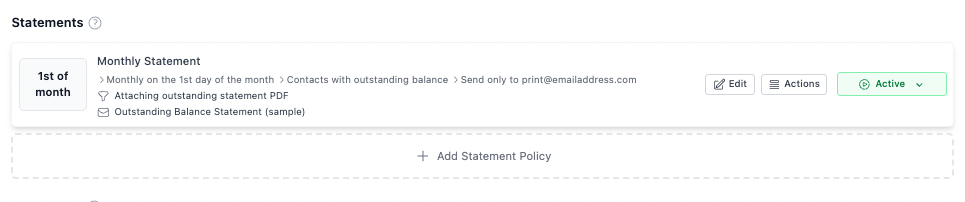
- Which customers receive a statement (all, a group, a tag, or a custom filter)
- When the statement runs (monthly, fortnightly, custom)
- Which statement type to generate
- Which template and branding to apply
- Where the statement is delivered
The Override Destination Email setting
Inside any Paidnice Statement Policy, open the More Options & Filters tab and set Override Destination Email. Every statement the policy generates then goes to that address instead of the customer's email in QuickBooks, on schedule, including statements for customers with no email address at all.
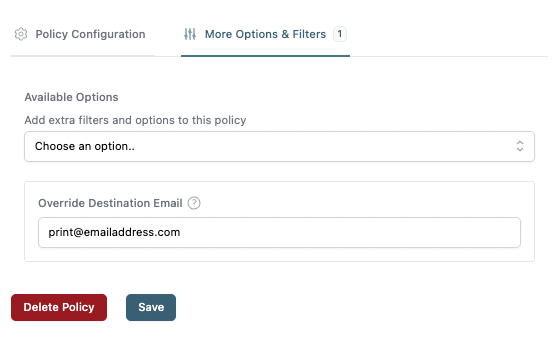
Point that field at one of two destinations:
Your office's email-to-print printer. Most multifunction devices (Xerox WorkCentre, HP LaserJet Enterprise, Canon imageRUNNER, and similar) accept an email with a PDF attachment and print it. Paidnice sends the statement to the printer's address, the printer prints it, and someone folds and posts it in the week's mail run.
A print-and-mail provider. PostGrid, Stannp, Lob and Docsaway accept documents by email or API, print them, put them in window envelopes and post them, often at bulk postage rates. In this setup the provider prints on letterhead stock and the business owner never touches a statement or a printer. For a business with a few dozen to a few hundred paper-statement customers, that is the difference between half a day of work each month and none.
Because the override is set per policy, two policies can run on the same schedule: one emails statements to customers with an email address, the other posts to customers tagged post-only or with no email on file. Neither needs a person.
How do you set up statements by post from QuickBooks Online?
The setup is one Statement Policy scoped to your post-only customers, with the override pointed at your printer or provider.
- Connect Paidnice to your QuickBooks Online company. The OAuth flow takes under a minute.
- Tag your post-by-mail customers. In Paidnice, apply a tag such as
post-onlyorno-email. A filter on "no email address" catches the obvious ones. - Create a Statement Policy. Set the schedule (the first of the month at noon is the most common), the statement type (Balance Forward mirrors what most AP teams expect) and the template.
- Filter the policy to your post-only segment so it does not reach your email customers.
- Open More Options & Filters and set Override Destination Email to your printer's address or your provider's ingestion address.
- Save. The policy runs from the next scheduled date.
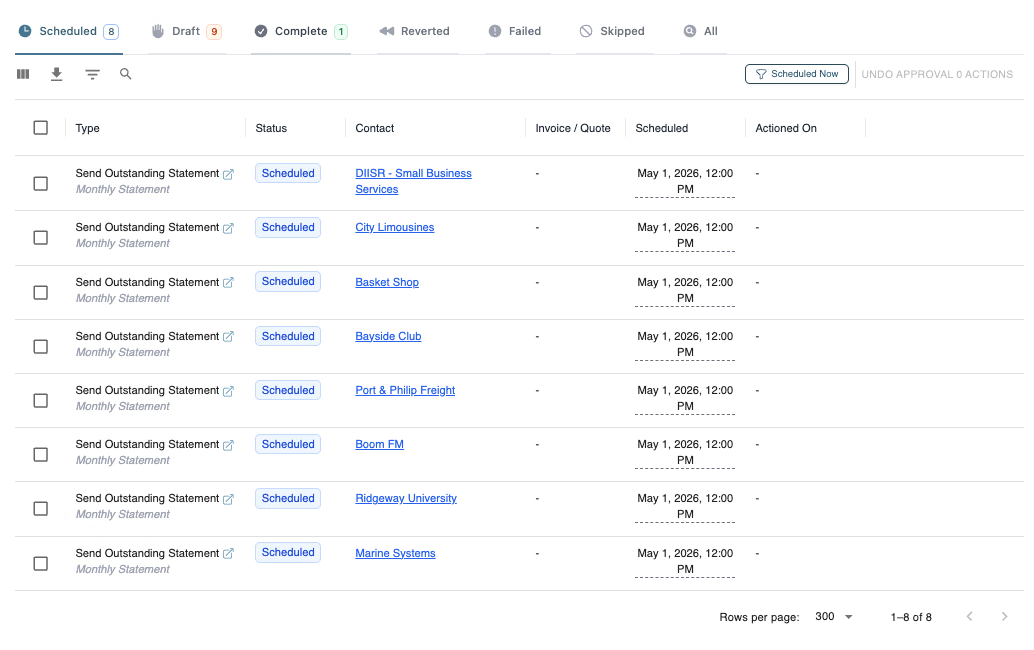
Every run then appears in your Paidnice action queue as a scheduled action, moves to complete when it fires, and records what was generated, when it went out and to which destination.
What does automated statement posting replace?
Automated statement posting removes the monthly manual run from QuickBooks Online and the private list that goes with it:
- Opening QuickBooks Online on the first of the month to run statements by hand
- Keeping a private list of "customers who need a posted statement"
- Emailing PDF statements to your printer or mailing service one at a time
- Missing customers with no email on file because the email run cannot reach them
- Following up two weeks later when a customer says "I never got a statement"
Can payment reminders and letters go by post too?
Yes. The same delivery logic applies to everything Paidnice sends from your QuickBooks Online ledger, including credit control for QuickBooks: payment reminders (friendly, due-date and overdue), late fee notices, formal overdue letters and final demands, and escalation letters. Construction, commercial leasing and B2B wholesale all have segments where the whole reminder sequence goes by post. A full cadence (a week before due, the due date, a 7-day overdue letter, a 14-day final demand) can route through your mailing provider with nobody sending it by hand.
Does QuickBooks Online statement mailing skip customers with no email address?
Yes. QuickBooks Online sends statements by email only, so a customer with no email address on file cannot be included in the send. Intuit's community answers give two options: add an email address to the customer profile, or print the statement and post it yourself. Nothing flags the gap on a report, so a customer who only ever paid from a posted statement can go quiet for months before anyone asks why. The Override Destination Email field in a Paidnice Statement Policy closes it: the statement generates on schedule whether or not the customer has an email, and goes to your printer or mail provider instead.
If you are already on Paidnice with QuickBooks Online connected, you can set this up today. If not, the QuickBooks Online connection is a standard OAuth install, and most new customers have their first automated statement run live within an hour.
About the editorial team
Denym started Paidnice in 2022 after customers paying late left his own business short on payroll. He has led it to $1 billion collected on time across more than 1 million invoices, and writes about credit control, late fees and getting paid on Xero and QuickBooks.
 App of the Year