Invoice Away Alternative: Schedule invoice sends for Xero
By Denym BirdCo-founder & CEO of Paidnice
8 min read ·
Contents▾
Invoice Away closed on 15 June 2026 at 12pm AEST. If you used it to schedule custom invoice sends from Xero, you need a replacement, and Xero’s native scheduling is deliberately basic.
Paidnice is a direct Invoice Away alternative for Xero. Paidnice can schedule invoice sends with more granular controls than Xero's new native scheduling, supports custom branded templates from your own domain, and adds the rest of the accounts receivable (AR) automation you'd otherwise need to add separately.
This guide covers why Invoice Away shut down, how to set up scheduled sends in Paidnice (step by step), and the edge cases that come up once you have been running it for a while.
This guide was written before the shutdown and still applies: the setup steps, timing controls and edge cases below are the same whether you are migrating off Invoice Away or setting up scheduled sends for the first time.
Why Invoice Away shut down
The Invoice Away team published a candid farewell post in early May. The short version of why they're closing:
Changes to Xero's app store revenue share, plus a new variable billing model, have made it harder for small app developers to operate sustainably.
The team plans to take a break and may build something new down the track.
It's a respectful exit by a team that did good work for seven years. The catch for their customers is that Xero's native scheduling is intentionally basic, so if you picked Invoice Away because Xero's defaults weren't enough, you'll want something that goes further than what Xero is rolling out natively.
The UK sits at the slower end of the scale. Xero Small Business Insights tracks the wait each month.
Some of the most common patterns we see, all of which Invoice Away users will recognize:
Batch billing on the first of the month. You generate 200 invoices on the 1st but want them to land in customer inboxes at 9am on the 2nd, when accounts payable teams are at their desks.
Forward-dated invoicing. You raise an invoice today for work that completes next Friday, and you want the email to go out on Friday morning.
Out-of-hours invoicing. Your team works late, raises invoices at 10pm, and you don't want customers receiving emails at that hour.
Subscription or recurring billing. You want every recurring invoice to send at the same time each cycle, regardless of when it was generated.
Different schedules for different customers. Wholesale clients get invoices on a different rhythm to your retail or one-off accounts.
Send invoices on the due date, not the issue date. You raise everything up front for the month but want the actual email to land closer to when payment is expected.
Setting up scheduled invoice sends in Paidnice (Invoice Away Alternative)
Setup takes about 5 minutes per policy. You'll need a Paidnice account connected to your Xero org. If you don't have one yet, you can start a free trial first.
Step 1: Create a new invoice schedule policy
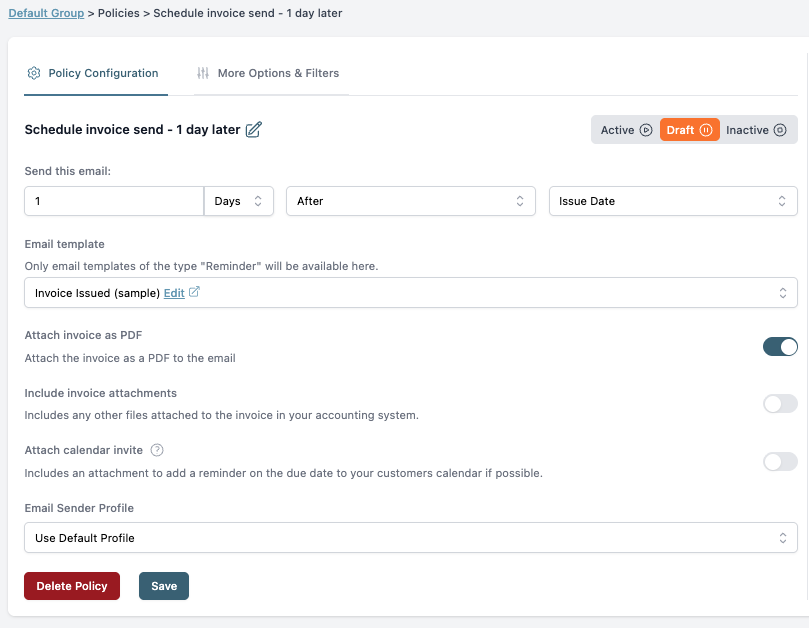
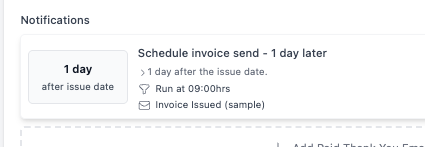
From the Paidnice dashboard, go to Policies and create a new policy of type Schedule invoice send. Give it a clear name that describes what it does, for example "Schedule invoice send, 1 day after issue". You'll see this name in your notifications list later, so future-you will thank present-you for being specific.
Step 2: Choose the timing
The core scheduling control has three parts: a number, a unit, and a reference date.
Number: how many days, hours, or weeks.
Direction: Before or After.
Reference date: Issue Date or Due Date.
So "1 Day After Issue Date" means the invoice goes out the day after it's raised. "3 Days Before Due Date" means it goes out three days before payment is due. Setting it to "0 Days After Issue Date" means it sends on the same day, at the action time you choose in Step 5.
Step 3: Pick your email template
Choose which template Paidnice uses for the send. You can use the default Invoice Issued template, or build a custom one with your branding, sender voice, and any standard text you want on every invoice email. Templates support merge fields for invoice number, amount, due date, customer name, and so on.
If you want to send from your own domain (for example, [email protected] instead of a generic Paidnice address), set that up in your Email Sender Profile before saving the policy. This is one area where Paidnice goes further than Invoice Away or Xero's native scheduling: branded sender, branded template, branded everything.
Step 4: Configure attachments
Three toggles control what goes with the email:
Attach invoice as PDF. On by default. Sends the standard branded PDF from your accounting system.
Include invoice attachments. Optional. Picks up any extra files attached to the invoice in Xero or QuickBooks (timesheets, receipts, scope documents).
Attach calendar invite. Optional. Adds an ICS file so the customer sees the due date in their calendar.
Step 5: Set the action time
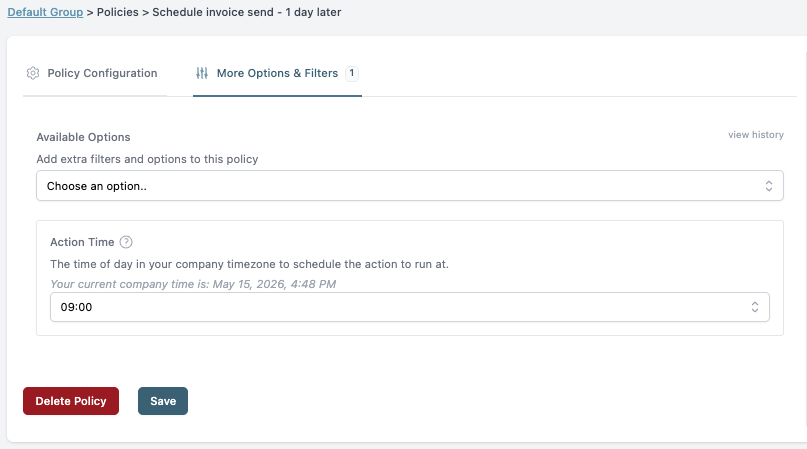
Switch to the More Options & Filters tab. The Action Time setting controls what time of day the schedule runs in your company timezone. 09:00 is a sensible default for most businesses, but if your customer base is split across timezones you might want 07:00 or 11:00 depending on who you mostly bill.
Step 6: Add filters (optional)
Use the Available Options dropdown to filter which invoices this policy applies to. You can scope by customer group, branding theme, tracking category, invoice value, and more. This is what lets you run different schedules for different segments without creating chaos. More on this in the edge cases below.
Step 7: Save as draft and test
New policies default to Draft. Save it, then open a test invoice in your accounting system to see how the policy would behave. When you're happy, switch the policy to Active. From that point on, every new invoice matching your filters will be queued automatically.
Edge cases Paidnice handles
The tutorial above covers the standard case. Here's how Paidnice handles the trickier scenarios that come up once you've been scheduling sends for a while, several of which Invoice Away didn't cover or covered loosely.
Different schedules for different customer groups
Create one policy per group. Use the Customer Group filter to scope each policy. For example, one policy might send wholesale invoices at 8am on the day after issue, and another might send retail invoices at 11am three days before due. Both run independently, and an invoice only triggers the policy whose filters it matches.
Different sender addresses per brand or business unit
Set up multiple Email Sender Profiles, one per domain or business unit. Then assign the appropriate profile to each policy. If you trade under two brands from the same Xero file, you can have [email protected] and [email protected] sending the right templates to the right customers, all from one Paidnice account.
Send by branding theme
The Branding Theme filter (Xero) is a clean way to split logic without touching customer records. Tag the invoice with the branding theme in Xero, and the matching Paidnice policy picks it up. Useful when the same customer can receive different invoice types that need different scheduling.
Avoiding after-hours and weekend sends
The action time controls the time of day, so invoices raised at midnight will queue until your next 9am run rather than going out at 2am. For weekend avoidance, use "1 Day After Issue Date" with a 09:00 action time. An invoice raised Saturday morning will queue and send Sunday at 9am. To skip Sundays entirely, use a 2-day offset or combine multiple policies with filters.
Holding an invoice until the due date
Set the schedule to "0 Days Before Due Date" at your chosen action time. The invoice is created in Xero or QuickBooks today, but the email doesn't go out until the due date itself. Combined with "7 Days Before Due Date" on a separate reminder policy, you get a clean two-touch sequence with no early send.
Pre-issuing invoices for the month
If you generate an entire month of invoices on the 1st but want them to roll out across the month, schedule based on Due Date rather than Issue Date. Each invoice's email will go out relative to when payment is due, not when you raised it. Customers see a consistent rhythm even though your billing was a single batch.
Suppressing the send for specific invoices
Use the Customer Tag or Invoice Tag filters to exclude certain invoices from a policy. Common uses: VIP customers who get a personal email instead, deposit invoices that shouldn't trigger the standard flow, or test invoices you've raised in production.
Delivery and open tracking
Paidnice tracks delivery and opens on every scheduled send. If an invoice email bounces or hasn't been opened after a few days, that's a signal to follow up by phone or send to a backup contact, rather than assuming the customer has the invoice and just hasn't paid yet.
Automated thank-you after payment
Once the invoice is reconciled as paid in Xero or QuickBooks, Paidnice can fire a separate thank-you email. It closes the loop on the customer experience and reinforces the relationship without anyone having to remember to send it.
What scheduled invoice sends look like alongside the rest of AR
Scheduled sends are usually the first piece of an AR automation setup, not the only one. Most Paidnice customers pair them with:
Payment plans for customers who need to pay in installments.
Escalations that hand off to a person when the automation has done its job.
That's the practical difference between an Invoice Away alternative and a full AR replacement: the scheduled send is one step, and there are usually six or seven more that move money from invoiced to paid. Paidnice customers see an average 25% reduction in days-sales-outstanding (DSO). The product won the Xero Global Small Business App of the Year 2025, and over $3 billion of debt has been paid on time through the platform.
What to do now
If Invoice Away is part of how you get paid today, the deadline is real. A month is enough time to migrate cleanly without rushing. It isn't enough time to wait until the last week.
The cleanest migration path:
Sign up for Paidnice and connect your Xero org.
Recreate your Invoice Away schedule as a Paidnice policy, in Draft mode.
Bring your branded email template across, and set up your sender profile on your own domain.
Run a few test invoices through to confirm timing, attachments, and template rendering.
Switch the Paidnice policy to Active.
Let it run alongside Invoice Away for a few days, then turn Invoice Away off ahead of June 15.
Written by
Denym Bird
Co-founder & CEO of Paidnice
Denym is a software entrepreneur and writes about accounts receivables management for small business.
Paidnice is accounts receivable automation that enforces your payment terms, trusted by thousands of businesses on Xero and QuickBooks. Credit control and debtor management, run for you.