Summary
Big clients want invoices in SAP Ariba, not in their inbox. You flip their PO into an invoice in SAP Business Network on a free Standard account; fees start only after 5 documents and US$50,000 with one customer.
- The cost: The Standard account is free with unlimited documents. An Enterprise account is chargeable only after 5 documents and US$50,000 with one customer.
- The steps: Workbench, Orders, pick the PO, Create Invoice, Standard Invoice, enter the invoice number and date, check the lines and tax, Next, Submit.
- Paidnice: Paidnice uses AI to ask for the PO, puts it on your Xero or QuickBooks invoice and sends it. Reminders go out from your business email address, and Paidnice records the payment date AP gives.
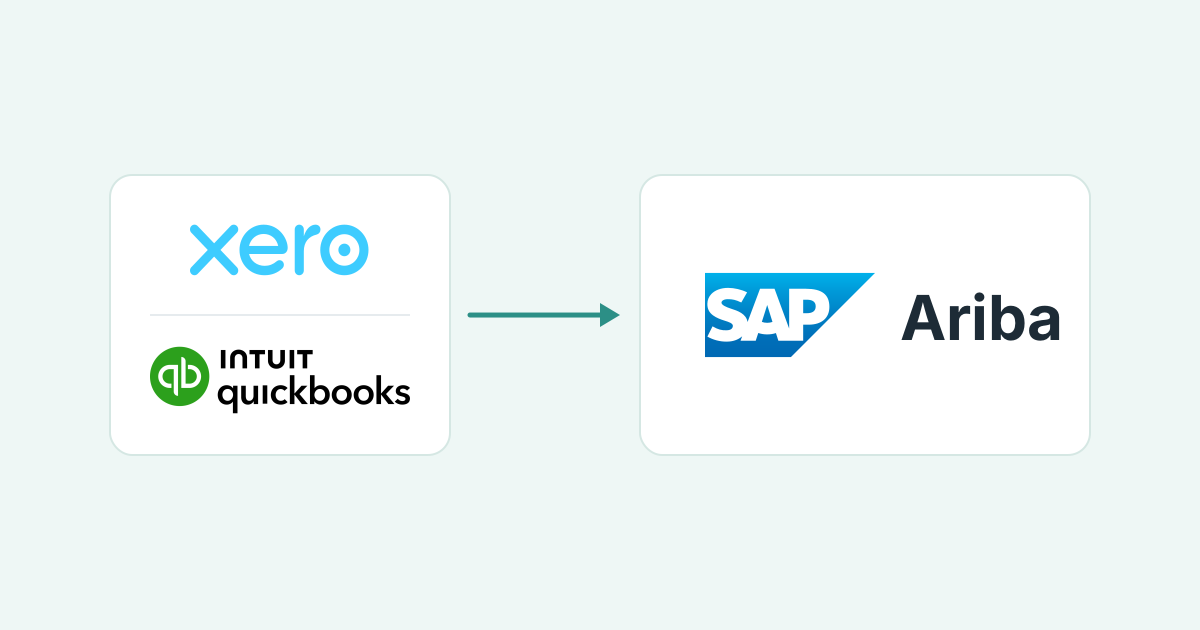
Your customer's purchase order arrives through SAP Business Network, and the invoice has to go back the same way. You already raised it in Xero or QuickBooks, so you build it again in Ariba, and if its date falls outside the window your customer allows, it comes straight back.
Start with the PO number guide if you do not have the PO yet; the customer portals guide compares Coupa, Tungsten Network and Tipalti.
Why do big customers send you to SAP Ariba?
Because their accounts payable team matches every invoice to a purchase order before paying it. SAP Business Network, formerly Ariba Network, is the supplier side where you work.
When your customer raises a PO, it lands in your SAP Business Network account, and your invoice travels back the same way.
The detour exists for the PO match: AP checks your invoice against the order, and the goods receipt where one exists. An invoice that arrives outside the network, or without a PO, never joins that queue.
Does a supplier pay to invoice through SAP Ariba?
Usually not. The Standard account is free with unlimited documents. Enterprise fees start only once you have transacted 5 documents and US$50,000 with one customer, then a yearly tier fee plus a transaction fee.
SAP's pricing page lists the Standard account as "Price: Free" and lets you "Transact unlimited number of documents" (SAP Business Network supplier pricing). Enterprise adds advanced reporting, invoice archiving and system-to-system integration. Invoicing by cXML or EDI needs at least the Silver level, so stay on Standard unless you need one of those.
Enterprise fees have two parts, both in US dollars. The yearly tier follows your document count: Bronze (5 to 24) US$50, Silver (25 to 99) US$750, Gold (100 to 499) US$2,250, Platinum (500 and more) US$5,500 (SAP support FAQ 182777).
The second part: 0.155% of qualifying volume, or 0.35% where service entry sheets are used, capped at US$20,000 per customer relationship each year (SAP Learning: supplier fees). Once one customer relationship is chargeable, every relationship on the account is.
SAP Business Network fee estimate
Enter your yearly activity with one customer. The estimate uses SAP's published schedule; SAP bills the final figure.
Estimate only. SAP sets the tier from your document count and applies the US$20,000 cap per customer relationship.
For example, 30 documents and US$150,000 with one customer, with no service entry sheets, costs US$0 on a Standard account. On an Enterprise account it is the Silver tier at US$750 plus a transaction fee of US$232.50, about US$982.50 a year.
| What SAP Business Network checks | Where it sits on your Xero or QuickBooks invoice |
|---|---|
| Purchase order number | Xero has no dedicated customer PO field; the usual workaround is the Reference field. QuickBooks Online uses a custom field with "Print on form" switched on. |
| Invoice number (case-sensitive, unique) | Invoice number in both ledgers. INV123 and inv123 are different numbers to SAP. |
| Invoice date (buyer-set window) | Issue date. The buyer's back-dating rule decides which dates SAP accepts. |
| Line items, quantities and unit prices from the PO | Invoice lines, matching the PO lines you are billing. |
| Bank details, if the buyer requires them | Your remittance details on the invoice. SAP's error reads "No bank account details found" when the buyer insists on them. |
How do you create an invoice in SAP Ariba?
Open the purchase order in SAP Business Network and flip it into a Standard Invoice. The order supplies the lines; you add the invoice number, date and tax, then submit. SAP calls this a PO flip.
Your user needs the Inbox Access, Outbox Access and Invoice Generation permissions (ask your account administrator to grant them), and the customer must have enabled invoicing for your account (SAP help: PO-based invoices). Then:
- Log in to your SAP Business Network supplier account and open the Workbench.
- Select the Orders tile and open the purchase order you are billing.
- Click Create Invoice, then Standard Invoice.
- Enter the Invoice # and Invoice Date. Use the same number your Xero or QuickBooks invoice carries.
- Check the line items pulled from the PO, remove any lines you are not billing yet, and add tax and any attachments the customer requires.
- Click Next to review, then Submit. Track it under the Workbench tiles: Invoices pending approval, Rejected invoices, Invoices pending payment, Paid invoices.
If Create Invoice is grayed out, the PO contains item groups, needs a service entry sheet (the buyer's record that the service was done) first, or is flagged for temporary pricing until a change order sets the final price. Standard Invoice is one of several types, and the customer decides which ones you may use (SAP help: about invoicing).
| Invoice type | When you use it | Where to start |
|---|---|---|
| Standard Invoice | Billing goods or services against a PO (the PO flip). | Open the PO, Create Invoice, Standard Invoice. |
| Credit memo | Reducing or canceling an invoice already sent. A rejected credit memo cannot be resubmitted. | Open the PO, Create Invoice, then the credit memo option. |
| Non-PO invoice | Billing with no purchase order. Available only when the customer allows it. | Open the invoice creation option for non-PO invoices, where the customer has enabled it. |
| Contract invoice | Billing against a contract rather than a PO, via the customer's contract site. | Punch in to the customer's contract, then invoice. |
| Service invoice | Billing services where the customer requires a service entry sheet before the invoice. | Create the service sheet first, then invoice from it. |
Why was my Ariba invoice rejected?
Most rejections come from rules your customer set, not from SAP. The buyer writes the reason in the invoice's Description field, and an invoice that breaks a rule never reaches the customer's inbox.
SAP's troubleshooting page says it directly: "Invoices that do not follow your customer's invoicing rules will not appear in your customer's inbox" (SAP help: troubleshooting invoices). A rule rejection shows a notice naming the rule, and you can edit and resubmit. The common causes, each with its fix:
- Invoice date outside the buyer's window. Each buyer sets how many calendar days an invoice may be back-dated, and SAP recommends they allow none. Fix: ask the buyer's AP team whether they will accept your original invoice date. If they will not, ask your bookkeeper before you change the date, because the due date can move with it.
- Invoice number rejected. Numbers are case-sensitive and cannot be reused unless the buyer allows it. Fix: issue a fresh number in your ledger and resubmit.
- No bank details. The error reads "No bank account details found" when the buyer requires them on every invoice. Fix: add remittance details and resubmit.
A buyer can also reject by hand. Read the Description field, correct the invoice, and resubmit under the same number only where the buyer permits reuse.
Which parts of SAP Ariba invoicing can you automate today?
Today you can automate collecting the PO, placing it on the invoice, approving and sending it, the reminders ahead of the due date, and saving the payment date AP gives you. Creating the invoice in SAP Business Network is still a step a person does.
| Task | By hand | Paidnice today | Status |
|---|---|---|---|
| Get the PO number | Email the buyer, wait, copy it in | Paidnice uses AI to notice the invoice needs a PO, write to whoever raised the order, and read the PO from the buyer system's email or the reply | Live |
| Put the PO on the invoice | Type it into Xero or QuickBooks | Paidnice writes it onto the invoice; the payer can also enter it in the Paidnice customer portal | Live |
| Approve and send the invoice | Approve, email the PDF | Paidnice approves and sends once the PO is on | Live |
| Create the invoice in SAP Business Network | PO flip in the Workbench | Manual | Coming soon |
| Remind ahead of the due date | Diary note, chase email | Pre-due reminders sent from your business email address | Live |
| Record the payment date AP promises | Read the reply, note it somewhere | When AP gives a payment date, Paidnice records it on that invoice in Paidnice and drafts a reply for you to approve | Live |
Which parts of Ariba invoicing still need a person?
The PO flip itself, any invoice the buyer rejects, a PO that has been partly invoiced, and anything that does not look right in the PO. Paidnice routes those to a person rather than guessing.
- The PO flip. A person opens the order in the Workbench and creates the Standard Invoice; cXML is an option from the Silver level.
- The account decision. Once one customer passes 5 documents and US$50,000, every relationship on the account is chargeable. Whether an Enterprise account earns its fee is your call.
- A partly invoiced PO. The remaining amount needs a second invoice with a new number in Xero or QuickBooks.
- A buyer rejection. Someone reads the Description field, then corrects and resubmits or issues a credit note and a new invoice.
Smart rules in Paidnice can format a PO number to a buyer's pattern. A PO that looks wrong, two POs for one invoice or a closed PO goes to a person for review first, and every reply the AI drafts is approved by a person before it is sent.
How does Paidnice get your Ariba invoices paid sooner?
Paidnice works on the invoice in Xero or QuickBooks: it gets the PO, sends the invoice, and pre-due reminders go out from your business email address. It records the payment date AP gives, so you have the date your customer promised.
Two Ariba rules break the match. The buyer sets the invoice date rule, and SAP recommends no back-dating, while your ledger holds the original issue date. And a PO can be partly invoiced, so the remaining amount needs a second invoice with a new number in both places.
An Ariba invoice can be in the network on time, with the right PO, and still miss the payment run because nobody asked AP for a date. Paidnice sends the pre-due reminder from your business email address and, when AP gives a payment date, records it on that invoice in Paidnice and drafts a reply for you to approve.
SAP Business Network shows approval or rejection under the Workbench tiles, and some customers run an Invoice Status Portal for single-invoice lookups. Neither updates your ledger. Accounts receivable automation from Paidnice works on that side, for Xero and QuickBooks Online.
Portal uploads are coming soon. We are starting with the portals our customers ask about most, so list yours when you book a call.
Common questions
How to send an invoice on Ariba network?
In the Workbench, select the Orders tile, open the purchase order and click Create Invoice, then Standard Invoice. Enter the invoice number and date, confirm the lines and tax, click Next, then Submit. The customer must have enabled invoicing for your account first.
What are the different types of invoices in SAP?
In SAP Business Network a supplier can send a Standard (PO-based) invoice, a credit memo, a non-PO invoice, a contract invoice and a service invoice, depending on which types the customer allows.
Is SAP the same as Ariba?
Nearly. SAP Business Network, formerly Ariba Network, is the supplier side of SAP Ariba, where you receive POs and send invoices. You work in SAP Business Network.

Stop chasing invoices.
Start getting paid.
Paidnice is accounts receivable automation that enforces your payment terms, trusted by thousands of businesses on Xero and QuickBooks. Credit control and debtor management, run for you.
Try it Now - It's FreeNo card required.