Summary
Big clients want invoices in Coupa, not in their inbox. Submitting through the Coupa Supplier Portal is free, but a submitted invoice cannot be edited, and Approved in Coupa does not mean paid.
- The cost: Invoicing in the Coupa Supplier Portal is free; Coupa Advanced is a separate paid subscription you do not need to submit an invoice.
- The catch: Once an invoice has been submitted it cannot be changed in any way, so a rejected invoice needs a replacement.
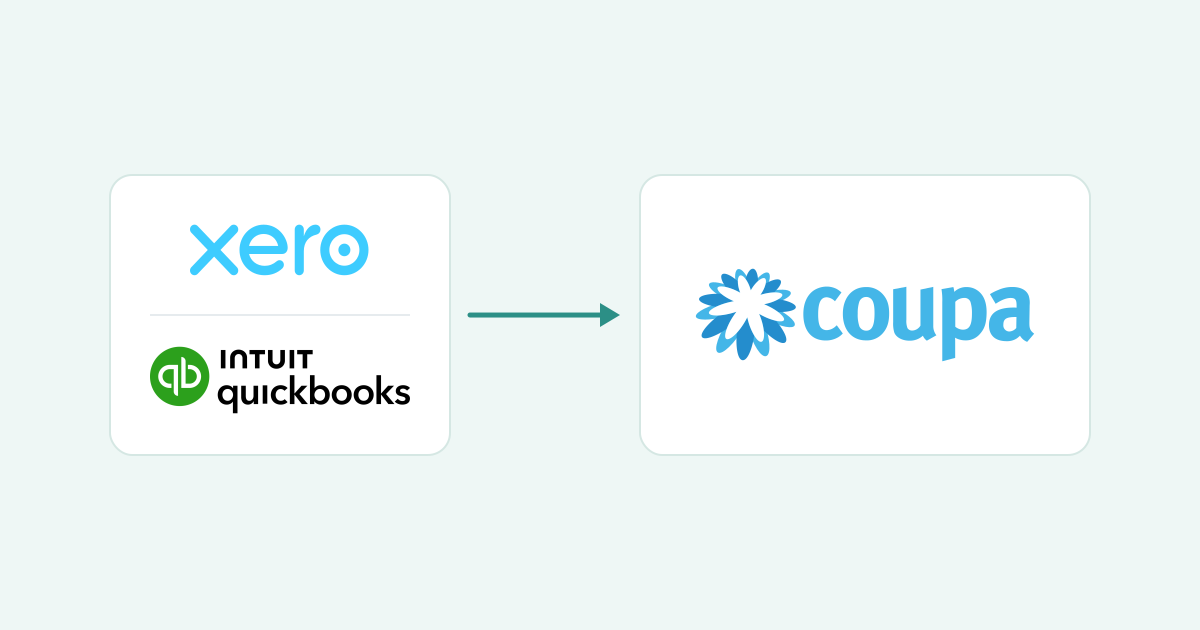
- Paidnice today: Paidnice uses AI to put the PO on your Xero or QuickBooks invoice, sends it, and records the payment date AP gives.
Your invoice is in Xero or QuickBooks and it looks right. But your customer runs on Coupa, and unless they accept emailed PDFs, the invoice has to be created in Coupa against their purchase order. So you key it in a second time and hope the two copies match, because once you submit it in Coupa you cannot edit it.
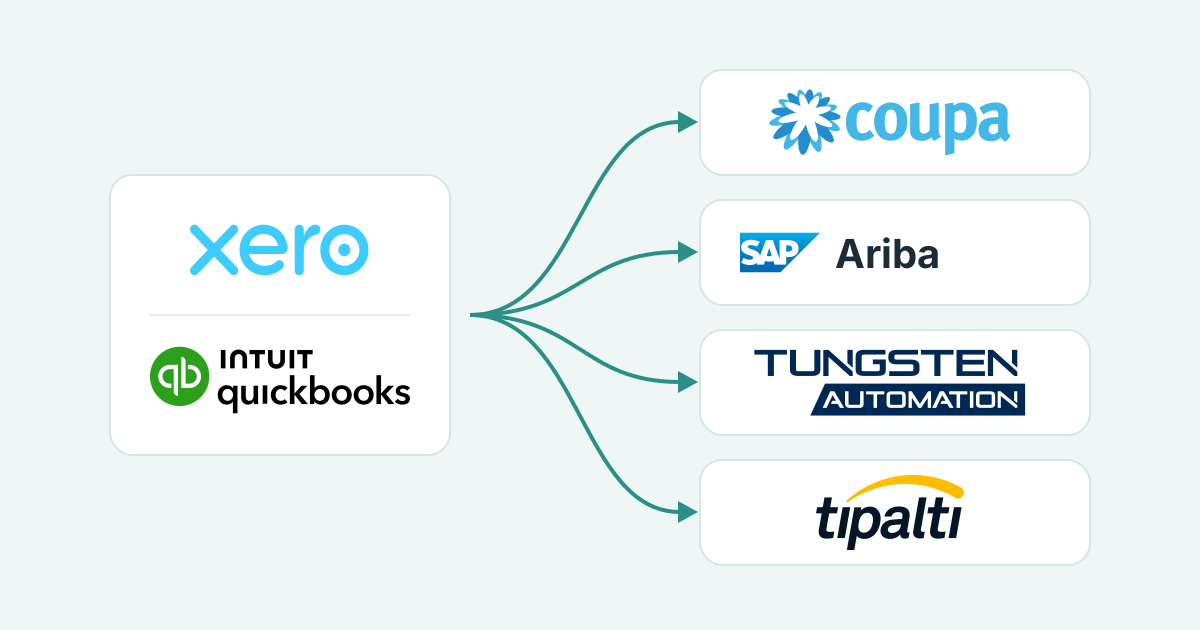
The customer portals guide covers SAP Ariba, Tungsten Network and Tipalti.
Why do big customers send you to Coupa?
Coupa is your customer's purchasing system. Every invoice it receives is matched to a purchase order and a receipt before payment, so the customer makes suppliers submit inside Coupa where that match can happen.
"No PO, no pay" is written policy at many large buyers. North Tyneside Council states that invoices which do not clearly identify a purchase order number "will not be processed for payment and will instead be returned to the supplier." The PO number guide covers getting the number in the first place.
What does Coupa need from you before it accepts an invoice?
Coupa needs a free Coupa Supplier Portal account or the PO email, a PO to invoice against, and an invoice whose number, date, currency, lines, tax and addresses match what your customer set up.
The Coupa Supplier Portal, or CSP, is "a free tool for suppliers", and Coupa's invoicing page says you can create invoices from purchase orders "for free."
Four routes exist, and the customer decides which are open to you. "Flip" is Coupa's word for turning a PO into an invoice, with the PO filling in the lines.
- Supplier Actionable Notifications. Flip the PO into an invoice "right from the PO email", with no CSP account needed (Coupa SAN guide).
- The Coupa Supplier Portal. Log in and flip the PO.
- cXML. A file format that lets your billing software post invoices straight into Coupa; it suits high PO volumes.
- A PDF by email. Coupa says this "may not be allowed by all companies, so check with your customers prior to sending," and that the customer may have to key it in by hand, "which may cause a delay in payment."
Tick off each field before you submit.
Coupa field checklist
What Coupa checks, and where each value sits on your Xero or QuickBooks invoice. Tick each one you have matched.
| What Coupa checks | On your Xero invoice | On your QuickBooks Online invoice | |
|---|---|---|---|
| Invoice number | Invoice no. | ||
| Date | Invoice date | ||
| Reference field | A custom field with Print on form switched on | ||
| Currency on the invoice | Currency on the invoice | ||
| Line items | Product/service lines | ||
| On the invoice | On the invoice | ||
| On the invoice | On the invoice | ||
| On the invoice | On the invoice | ||
| Invoice PDF from Xero | Invoice PDF from QuickBooks |
The PO row is the one to watch. Xero's sales invoices have no customer PO field (the Product Ideas request has 218 votes, status Accepted, open since October 2014), so the PO goes in Reference. QuickBooks Online has custom fields on every plan, and one prints on the customer's copy only when Print on form is on.
How do you submit an invoice in the Coupa Supplier Portal?
Open the Orders tab, click the Create Invoice icon next to the PO, fill in the mandatory fields, attach your invoice PDF, click Calculate, then Submit.
- Log in to the Coupa Supplier Portal. If you are connected to more than one customer, choose the customer from the Select Customer drop-down first.
- Open the Orders tab and find the purchase order you are invoicing.
- Click the Create Invoice icon in the Actions column.
- Fill in every field marked with a red asterisk. At minimum that is the Invoice # and the invoice date. Your customer can add its own mandatory fields.
- Check the lines. On a PO-backed invoice the currency, unit of measure and unit price cannot change from the PO; quantity can run from zero up to what is still open. One PO can be invoiced more than once.
- Add tax at line or header level as your customer requires, and attach your invoice PDF under Attachments.
- Click Calculate and check the totals against the invoice in Xero or QuickBooks.
- Click Submit. Then open the Invoices tab to follow the status. Pending Approval means the invoice is under review by your customer.
To invoice without a PO, look for the Create Blank Invoice button on the Invoices tab. If it is missing, Coupa's FAQ says your customer has to switch on non-PO invoicing for your supplier account.
What makes Coupa hold or reject an invoice?
Coupa invoices stall when a field disagrees with the PO or with the customer's setup: an amount outside tolerance, a closed PO, a missing legal entity or remit-to, a bill-to mismatch, or an attachment Coupa cannot read.
Because "once an invoice has been submitted, it can't be changed in any way," every fix means a new document.
| Status or error | What it means | The fix |
|---|---|---|
| Tolerance Hold | Your invoiced amount differs from the PO by more than the customer allows without a manual approval | Do not force it through. Ask your customer's buyer to amend the PO, or invoice the PO amount and bill the difference separately once the PO is amended |
| Amount above the PO's remaining amount | On a PO-backed invoice, quantity and amount can only run from zero to what is still open on the PO | Ask the requester for a new PO or a change order, then flip that |
| Missing legal entity or remit-to | Legal entity and remit-to address are part of the invoice setup in the CSP | Check both are in place for this customer before you submit |
| Tax ID error (UK and Australian suppliers) | The VAT or ABN number is missing its country prefix | Coupa's FAQ: "add GB or ABN in front of the VAT number" |
| Disputed | The customer has raised a reason against the invoice; it "does not process disputed invoices for payment until you resolve the dispute" | Read the reason in the notification email, then correct or credit as below |
| Rejected | The invoice will not be processed | "Create a new invoice to replace the one that was rejected." |
Credit notes have their own rule: Coupa lets you raise one only against an invoice in Disputed or Approved status, with a negative quantity or amount and the original invoice number and date on it. Raise both in Xero or QuickBooks first.
Paidnice never logs in to a buyer's portal. It works on the ledger copy: the PO on the invoice, the pre-due reminder and the payment date AP gives you.
Which parts of Coupa invoicing can be automated?
Getting the PO, putting it on the Xero or QuickBooks invoice, sending the invoice, the pre-due reminder and the payment-date record can all be automated. The upload into Coupa still happens by hand or by cXML.
| Task | By hand | Paidnice today | Status |
|---|---|---|---|
| Spotting that this customer needs a PO | You remember, or you find out when the invoice is returned | Paidnice uses AI to notice the invoice needs a PO and writes to whoever raised the order | Live |
| Reading the PO out of the reply | Copy it from the email or the Coupa PO notification | Paidnice reads the PO from the Coupa PO email or the reply; the payer can also enter it in the Paidnice customer portal | Live |
| Putting the PO on the invoice | Open the invoice in Xero or QuickBooks and type it | Paidnice drops the PO into the invoice, then approves and sends it. Smart rules format the PO; anything that looks wrong goes to a person first | Live |
| Submitting the invoice in Coupa | Orders tab, Create Invoice, Calculate, Submit | By hand, or by cXML if you have an integration team | Coming soon |
| Reminding before the due date | A calendar note and an email you write | Pre-due reminders sent from your business email address | Live |
| Recording the payment date AP gives you | A note in the CRM, or nowhere | When AP gives a payment date, Paidnice records it on that invoice in Paidnice and drafts a reply for you to approve | Live |
Every draft Paidnice writes, the PO request, the invoice and the reply to AP, is approved by a person before it is sent.
Which Coupa jobs stay with a person?
Flipping each PO in the CSP, setting up your legal entity and remit-to addresses, and handling disputes and partial invoices stay with you, along with the call on Coupa Advanced.
- Registration and setup. The CSP account (or the PO email route), your legal entity and each remit-to address (where you want to be paid) are set up once, by you, following your customer's supplier guide.
- Partial invoicing. Coupa lets you invoice a PO more than once, but someone decides the split and raises matching Xero or QuickBooks invoices with their own numbers.
- Disputes and odd POs. The dispute reason arrives by email and is resolved in the portal. Several POs on one invoice, a PO in an unexpected format, or a closed PO go to a person for review before Paidnice uses them.
- Coupa Advanced. This paid subscription's QuickBooks sync pulls CSP invoices into QuickBooks Online; it does not push QuickBooks invoices into Coupa. Whether it earns its cost is your call.
Where does Paidnice fit once the invoice is in Coupa?
Paidnice works on the ledger side of the two-copy problem: it gets the PO, puts it on the Xero or QuickBooks invoice, sends it, and pre-due reminders go out from your business email address. The payment date AP gives is recorded on the invoice.
Coupa is clear about where its job ends. Asked what happens once an invoice is approved, its FAQ answers: "Nothing. The invoice is your customer's queue and you'll be paid based on the payment terms you set with your customer." Approved does not mean paid, and chasing payment is still your job.
That chase happens in neither system: Coupa will not let you touch a submitted invoice, and Xero or QuickBooks does not know it is in an approval queue. Accounts receivable automation from Paidnice covers the ledger side.
Portal uploads are coming soon. We are starting with the portals our customers ask about most, so list yours when you book a call.
Common questions
How do you submit an invoice in Coupa?
Log in to the Coupa Supplier Portal, open the Orders tab, click the Create Invoice icon next to the PO, fill in the fields marked with a red asterisk, attach your invoice PDF, click Calculate, then Submit.
How to correct an incorrect invoice?
You cannot edit a submitted Coupa invoice. If it is Pending Approval, ask your customer to dispute or void it. If it is Disputed, correct it inside Coupa; a country-compliant e-invoice needs a new number.
If it is Approved, raise a credit note quoting the original invoice number and date, then submit a replacement. If it was Rejected, submit a new invoice.
Which comes first, PO or invoice?
The PO. Your customer raises the purchase order before the goods or services are supplied, and the invoice quotes that number. Coupa enforces the order: a PO-backed invoice is created from the PO.

Stop chasing invoices.
Start getting paid.
Paidnice is accounts receivable automation that enforces your payment terms, trusted by thousands of businesses on Xero and QuickBooks. Credit control and debtor management, run for you.
Try it Now - It's FreeNo card required.