



Summary
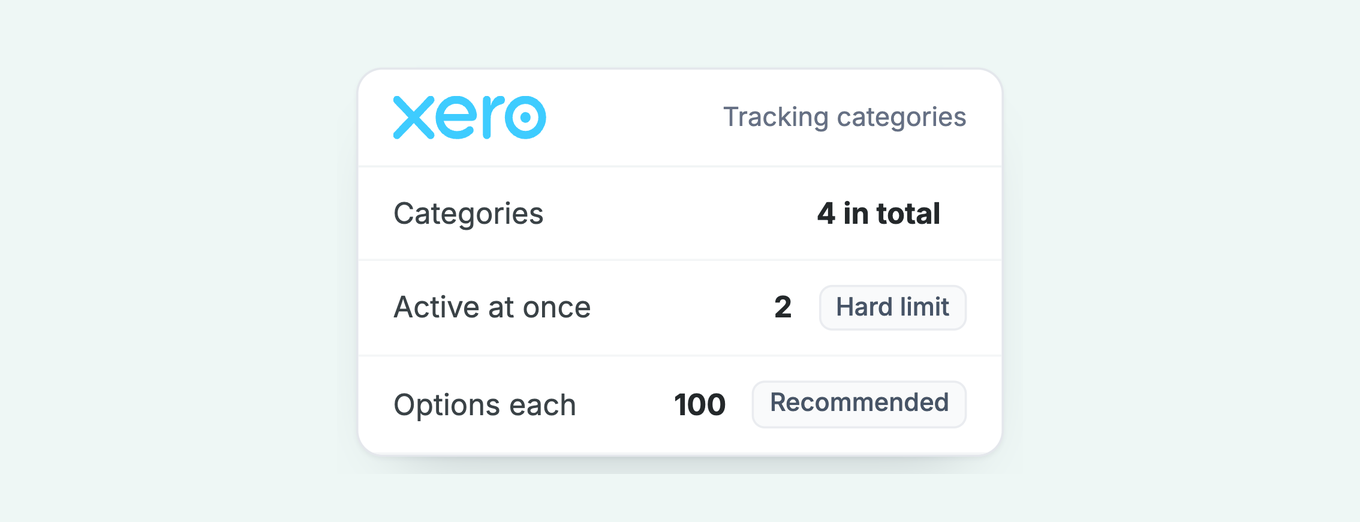
A Xero tracking category can tag every invoice with a partner, department or region, and the Aged Receivables report can then group by that tag. Xero allows four categories in total, two active at a time, with no more than 100 options recommended in each. Set the category on a contact's sales defaults and the split maintains itself.
- The default that keeps it accurate: Setting the category on a contact's sales defaults makes Xero apply it to every new invoice for that contact automatically; it does not retag existing invoices.
- The real limit: The often-quoted 100-option ceiling is a performance recommendation, not a hard cap; the hard limit is two active categories out of four total, and the request for more holds 262 votes at In discovery.
- What it does not do: Tracking categories change what the report shows, not who gets chased: Xero's invoice reminders are one organisation-level schedule that never reads them.
How do Xero tracking categories work?
Xero tracking categories are labels on transactions: four categories in total, two active at any time, each holding a list of options, with Xero recommending no more than 100 options per category. They are Xero's replacement for department codes and cost centres, and a category needs at least one option before you can assign it to a transaction.
The 100-option figure is a performance recommendation rather than a hard limit. Xero's wording is "no more than 100 tracking options for each tracking category to ensure reports load quickly", which matters if your split is one option per customer segment across a large base. Xero's setup article carries both figures.
Free: Payment reminder email templatesCopy the reminder emails for before, on and after the due date.Why split your customer base at all?
Splitting a Xero customer base by owner turns one aged receivables list into a set of short ones, each with a person attached to it. Sorted by customer name, the report treats a £40,000 book and a £400 account the same way.
The most common split is by partner in an accounting or law firm: each partner's clients carry that partner's tracking option, and the grouped report gives every partner their own debtors section to chase.
The splits that earn their setup time share one property: the segment changes who acts on the debt. A regional manager owns their branch's debtors. A director with a client portfolio chases their own accounts. A subscription arm and a project arm read their ageing differently. If nobody different acts on the segment, you do not need the category.
How do you set up the split in Xero?
Set up the split in four steps: create the tracking category, set it as a sales default on each contact, retag the invoices that already exist with Find and recode, then group the Aged Receivables report by the category and save it.
- Create the category. In the Accounting menu, select Accounting settings, click Tracking categories, then Add Tracking Category. Name it after the axis, such as "Partner" or "Branch", and add one option per segment.
- Set the default on each contact. Open the contact, edit the Sales defaults, and assign the tracking option. Xero's contact fields article confirms the assigned category then populates when you create a new transaction for that contact.
- Retag the invoices that already exist. The contact default applies to new transactions only. Use Find and recode, which needs the adviser role, to assign the option across your open invoices in bulk.
- Group the report. Open the Aged Receivables Summary or Detail report, group or summarise by your category, then save the layout as a custom report.
The contact default only fires on transactions created in Xero. If invoices arrive through an integration, whether a billing platform, a practice tool or an API connection, that system must carry the tracking option itself, or those invoices land untagged and the segment totals quietly drift. Check where every invoice type is raised before you trust the report.
What does the grouped report give you, and where does it stop?
Grouped by category, the Aged Receivables report shows each segment's outstanding and overdue balance in its ageing buckets, one section per option. Each partner or manager reads their own section instead of scanning the whole ledger.
Aged Receivables Summary, 8 September 2026
Partner: Anaru£18,540
- Moorland Build Ltd£11,760
- Fenwick Interiors£6,780
Partner: Sofia£9,865
- Bramley Logistics£7,750
- Oakhurst Studio£2,115
Partner: Marcus£4,205
- Tidewell Marine£3,640
- Larkspur Media£565
The pattern in the bottom half of that table is that Xero reports on the split but does not act on it. The report is a picture of one date, pulled by whoever remembers to pull it. Invoice reminders in particular never read tracking categories: one organisation-level schedule applies to every invoice marked as sent, which is a separate problem with its own workarounds.
Where do the limits stand with Xero?
The limit of two active tracking categories is under review but unchanged. The idea "Tracking Categories - Increase maximum number of active tracking categories and tracking options" was posted on 27 September 2025 and holds 262 votes at "In discovery". Xero community manager Kelly Munro replied on 1 September 2026 that the team are "exploring how we might tackle the needs in this idea" but "can't commit to developments at this stage".
So plan within two active categories. If both are already spent on department and location, the customer-owner split has no slot, and the practical route is to carry the segment somewhere else, such as contact groups, which connected apps can read.
How does Paidnice report on the customers inside each segment?
Paidnice reads the Xero contacts and invoices in each segment and reports on the customer level: outstanding and overdue balances, oldest overdue age, average days to pay and a credit score per contact. The grouped Xero report says which segment holds the overdue money; Paidnice says which customer inside it is the problem and what has been done about it.
Every contact carries outstanding and overdue balances, oldest overdue age, average days to pay and a 0 to 100 credit score built from the contact's payment history, banded from Excellent to High risk. Contacts sit in groups that show combined payer data, so a group per partner or branch reads as that owner's book. Saved views on the invoice and contact lists keep each owner's cut one click away, and everything exports to CSV.
The report is also where action starts, rather than an export you re-pull each week. An escalation can fire when a customer in the segment goes past a day threshold or breaches a credit limit, with the instruction emailed to the segment's owner. The Xero-tagged split becomes an escalation lane, and the overdue picture reaches the right person without anyone pulling a report.
Paidnice connects to Xero in a few minutes and starts at £49 a month for 150 invoices, with unlimited users on Pro, so every partner or manager can hold their own login without a Xero seat. See debtor management for Xero.
Related: credit control reporting in Xero, keeping a debtors report current without Excel, seeing who is slipping and setting an alert, and running different collection automations by tracking category.
Common questions
What are tracking categories in Xero and how do they work?
They are labels you assign to transactions so reports can slice by part of the business, such as department, location or partner. You create a category with options, assign options to transactions, and group reports by the category.
Is there a limit to tracking categories in Xero?
Yes. Four categories in total, two active at any time. Xero also recommends keeping each category under 100 options so reports load quickly, though that figure is a recommendation rather than a cap.
How do I set up tracking categories in Xero?
In the Accounting menu, select Accounting settings, click Tracking categories, then Add Tracking Category. Name the category, add its options and save. Assign options on transactions, or set a default per contact in their sales defaults.
What is the difference between tracking categories and projects in Xero?
Tracking categories label transactions for reporting across the whole business. Projects collect time and costs against a piece of work for job-level profitability. Xero's own guidance is that tracking is not designed for job costing.
Can I report aged receivables by tracking category?
Yes. Both the Aged Receivables Summary and Detail reports can group or summarise by tracking category once your invoices carry the options, and the grouped layout can be saved as a custom report.
Do tracking categories change who gets invoice reminders?
No. Xero's invoice reminders are one organisation-level schedule that never reads tracking categories. Splitting the chasing itself needs a connected app that can run a sequence per segment.
About the editorial team
Denym started Paidnice in 2022 after customers paying late left his own business short on payroll. He has led it to $1 billion collected on time across more than 1 million invoices, and writes about credit control, late fees and getting paid on Xero and QuickBooks.
 App of the Year