



Summary
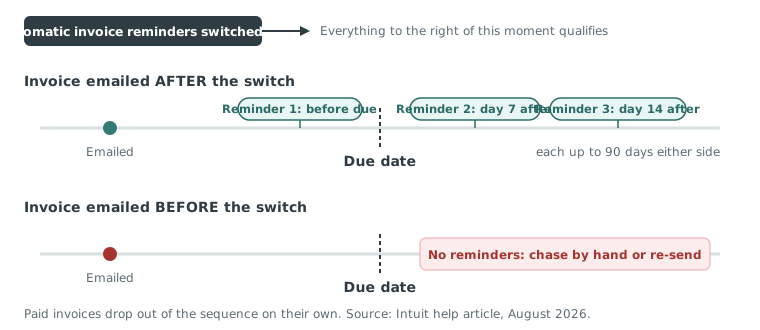
You can chase overdue invoices automatically by turning on your accounting software's built-in reminder setting or connecting a dedicated app. QuickBooks Online sends up to three automatic email reminders per invoice, up to 90 days before or after the due date, but only for invoices emailed after the setting goes on.
- The limit: QuickBooks Online allows three reminders total on one schedule for every customer; Xero allows five per organisation.
- The gap: Reminders are not retroactive, cannot text, and send no statements or payment plans without an app.
- The fix: Paidnice picks up invoices already open at connection and adds SMS, statements, late fees and payment plans on top.
Can any accounting software chase overdue invoices automatically?
Yes. Xero, QuickBooks Online and most cloud accounting platforms have a native reminder setting that sends a fixed sequence of emails before or after an invoice's due date. The native reminders are not retroactive, apply the same sequence to every customer, and stop working once a slow payer has decided to pay late. A connected app, such as dunning software for QuickBooks Online, adds SMS, per-customer schedules, statements and late fees on top. Every claim about QuickBooks Online below comes from Intuit's own help articles, linked where they are used.
How QuickBooks Online can automatically chase overdue invoices
QuickBooks Online chases overdue invoices with up to three automatic emails once you turn the feature on, but not invoices emailed before that moment. Paidnice picks up invoices already open when you connect.
The setup takes about five minutes. Every step below is from Intuit's help article Send invoice reminders automatically or manually.
- Select Settings (the gear icon), then Account and settings.
- Open the Sales tab.
- In the Reminders section, select the edit (pencil) icon.
- Turn on Automatic invoice reminders.
- For Reminder 1, choose the number of days and whether it fires before or after the due date. Anything up to 90 days either side is allowed.
- Edit the subject line, greeting and message. To attach a PDF of the invoice, use the separate Online delivery setting on the same Sales tab: select its edit icon, tick PDF Attached and save.
- Add Reminder 2 and Reminder 3 the same way if you want a sequence. Three is the ceiling.
- Select Save, then Done.
From that point, any invoice you email from QuickBooks Online that is still unpaid when a reminder's trigger day arrives gets the reminder. Paid invoices drop out of the sequence on their own. For a one-off nudge outside the schedule, go to Sales & Get Paid > Invoices, find the invoice, use the Receive payment dropdown and choose Send reminder. That manual send is independent of the automatic sequence.
Free: Payment reminder email templatesCopy the reminder emails for before, on and after the due date.QuickBooks Online automated invoice reminders
The automated reminders are a single, organization-wide email sequence: up to three messages, each with its own day count, subject and body, applied to every invoice you email from QuickBooks Online.
The table sets out what the settings page controls and what it does not. Two rows matter more than the rest: the single schedule and the retroactivity gap. Both are covered below the table.
| Setting | QuickBooks Online | Notes |
|---|---|---|
| Number of reminders | 3 | Xero allows 5 per Xero organisation, for comparison. |
| Timing window | Up to 90 days | Before or after the due date, per reminder. |
| Custom subject and message | Yes | Per reminder. The PDF attachment is a separate Online delivery setting. |
| Channel | Email only | No SMS option on the help article. |
| Applies to existing overdue invoices | No | Only invoices emailed after the toggle is on. |
| Different schedule per customer | No | One sequence for the whole organization. |
| Turn off for one customer | Unclear | Not documented on Intuit's core article. |
| Escalate to a named person | No | All three emails come from the same sender. |
QuickBooks Online Advanced adds workflows, which can create extra invoice reminders beyond the three-reminder setting (Intuit help).
The one-schedule problem. A customer who pays on day 28 every month and a customer who is 60 days late on three invoices get identical emails on identical days. There is no way to give the reliable payer a softer sequence, or the slow payer a harder one. The tone you write for the worst case lands on the best case too.
The retroactivity gap. This is the caveat that surfaces in several QuickBooks Community threads on the subject, and most guides skip it. Turn reminders on today and the invoices already overdue from last month are not enrolled. You still have to chase those manually, or re-send them from QuickBooks so they qualify.
Re-sending an old invoice to enroll it in the reminder sequence may also change the "sent" date the customer sees; Intuit's article does not say. If you take that route, keep a note of the original send date in case the account ever goes to a collector.
The QuickBooks Online automatic payment reminders feature for overdue invoices
The automatic payment reminders feature is the same three-reminder setting described above. QuickBooks Online has one reminder setting. The "Schedule Payment Reminders" tool in Intuit's help is a QuickBooks Desktop feature. Beside it sits a separate automatic late fee setting, which is also not retroactive.
People search for "payment reminders," "invoice reminders" and "overdue reminders" as though they were three features. In QuickBooks Online they are one. The three settings that actually exist on the Sales tab are:
- Reminders. The three-email sequence covered above.
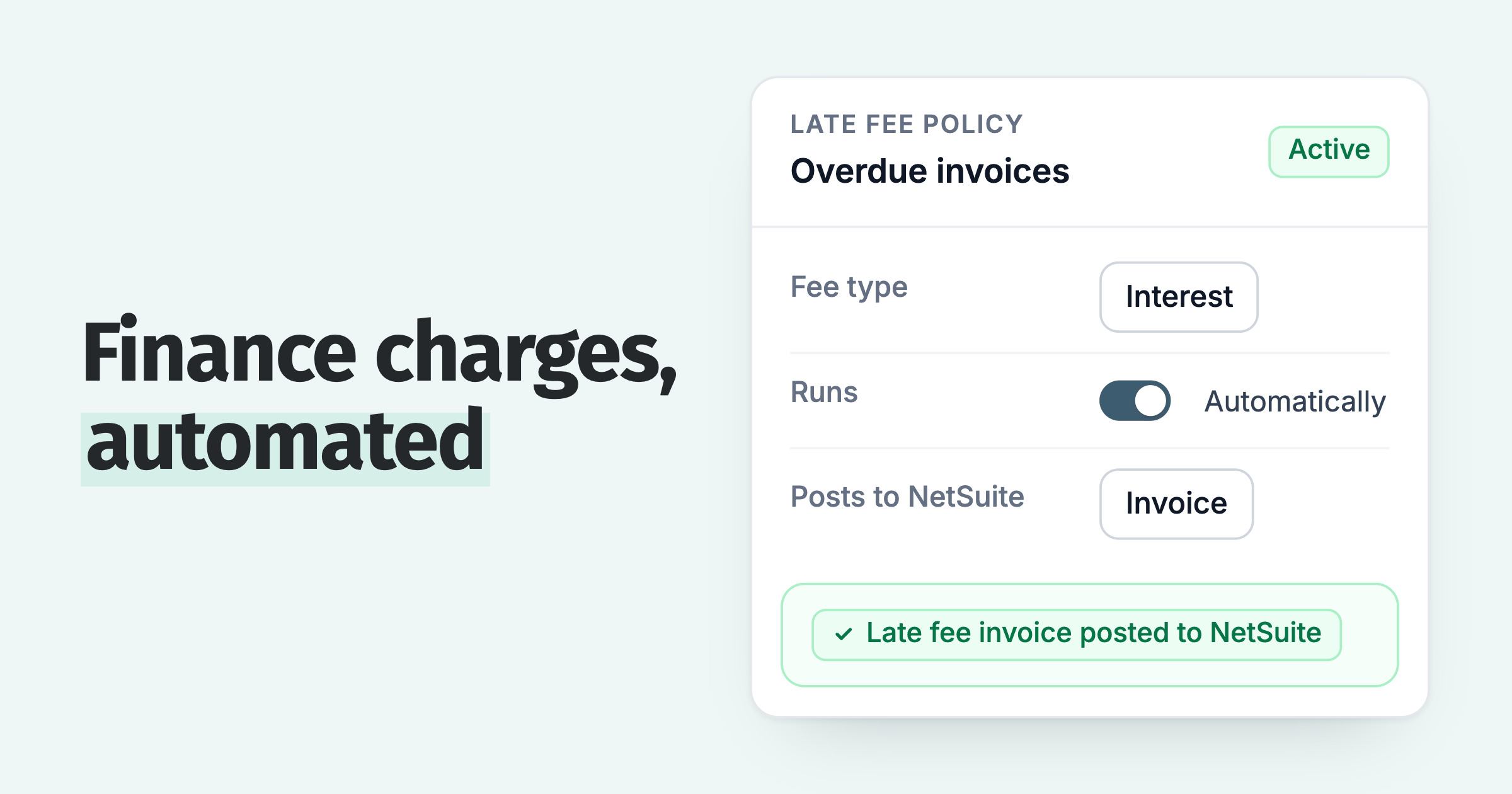
- Late fees. A frequency, an optional grace period, and a fixed amount and/or a percentage of the balance. Fees apply only to overdue invoices and are calculated from the day after you turn the setting on. Changing the setting later only affects new fees. Per-customer variation exists through a separate "Charge customers different automatic late fees" control (Intuit help article).
- Statements. Sent manually from the customer's Statements tab on standard plans. Only QuickBooks Online Advanced has a recurring statements feature.
For the late fee setting in detail, including what shows up on the customer's invoice, see Can I add a late fee in QuickBooks Online? and How to apply finance charges in QuickBooks Online. This page stays on reminders.
Why three emails stop working
Three QuickBooks reminder emails from the same address on a fixed schedule stop working when the customer has already decided to pay late. At that point the reminder needs a consequence attached, or a different person sending it.
Do not stop at three emails. When you chase an overdue invoice, it usually takes 2 to 3 follow-ups to get it paid. 6 in 10 are paid by the second follow-up and 8 in 10 by the fourth. About 1 in 10 is still unpaid 180 days after the due date.
The problem is large. Intuit's own 2026 Small Business Late Payments Report found that 59% of US small businesses have invoices overdue by 30 or more days, and the average business is owed $17,700 (Intuit QuickBooks, July 2026).
A polite email on day 7 and day 14 handles the customer who forgot. It does nothing for the customer who is managing their own cash flow by stretching yours. For that customer, four things move the invoice up their payment run:
- A statement. One document with every open invoice and the total. Accounts payable teams pay from statements, not from a string of single-invoice emails.
- A fee on the ledger. A late fee that appears as its own line or invoice enters their aged payables. That is leverage: it costs them money to keep waiting.
- A named sender. The third reminder from "accounts@" reads like the first. The same message from the owner or a named credit controller gets opened.
- A second channel. A text message reaches the person who has muted the inbox.
QuickBooks Online does the first only on Advanced, the second without retroactivity or escalation, and the third and fourth not at all. That is the gap the app store fills. Intuit's AI agent drafts reminders for you to review: what the QuickBooks AI agent does with overdue invoices covers it.
What Paidnice and other connected apps add to QuickBooks Online reminders
Accounts receivable apps in the QuickBooks App Store replace the three-email sequence with per-customer schedules, SMS, scheduled statements, late fees with leverage and payment plans. Paidnice also picks up invoices already open at connection.
The table compares four apps QuickBooks Online users in the US commonly weigh against each other, with what each adds on top of the native setting. Verify current pricing with each vendor. Where a row says "Not published," the vendor does not state the capability publicly and no evidence was found either way.
| Capability | QuickBooks Online native | Chaser | Upflow | Kolleno | Paidnice |
|---|---|---|---|---|---|
| Reminder sequence | 3 emails (Advanced: workflows) | Multi-step schedule | Multi-step workflow | Multi-step workflow | Multi-step schedule |
| Different schedule per customer group | No | Yes | Yes | Yes | Yes |
| SMS reminders | No | Yes | Yes | Yes | Yes ($0.10 each) |
| Statements on a schedule | Advanced only | Not covered in this comparison | Not published | Portal only | Yes |
| Late fees and interest | Not retroactive | Not covered in this comparison | Via ERP only | No evidence found | Yes (per group, on the ledger) |
| Payment plans | No | Not covered in this comparison | No | Yes | Yes (Stripe) |
| Credit checks | No | Yes | Scoring only | Yes | Yes: native, plus Creditsafe on Custom |
| Pricing model | Included | Turnover-based, from £199/mo (about $259), entry tier to £4m turnover | Quote by gross invoice value, unlimited seats; Payments add-on $390/mo | $650 per user a month | Invoice-based, from $69/mo, no per-seat fees |
| Built for | Any QBO user | Larger businesses with a credit team | AR teams wanting analytics | AR teams wanting cash application | Companies without an AR team |
A short read of each, in the order they appear above:
- Chaser is the established tool for larger businesses. Email, SMS and credit checks in one workflow, priced on turnover. The entry tier caps at £4m turnover.
- Upflow is a sales-led platform for AR teams that want analytics. Reminders send once a day on weekdays, late fees come from your ERP rather than the app, and pricing was last reported at $440 (Grow) and $880 (Scale) a month in 2024, now quote-only, so request a quote.
- Kolleno is built around cash application and reconciliation for AR teams. Per-user pricing, payment plans included, no late fee feature found.
- Paidnice is invoice-priced from $69 a month with no per-seat fees, for companies without an AR team. Late fees sit on the ledger per customer group, and invoices already open at connection are picked up.
We built the first version of Paidnice in 2022 to apply late fees, because the native reminder toggles in Xero and QuickBooks Online were where most small businesses stopped. The pattern we see is consistent: three polite emails, then someone in the office starts phoning. Customers see half as many late invoices in the first 30 days.
Native reminders or an app: how to decide
Stay on the native three reminders while your overdue list fits on one screen and every invoice was sent after you turned reminders on. Add an app when the same customers keep reappearing, or when someone is chasing manually after the third email.
| Your situation | Stay native | Add an app |
|---|---|---|
| Fewer than about five overdue invoices at a time | Yes | |
| Same customers late every month | Yes, per-group schedules | |
| Older invoices already overdue when you switched reminders on | Re-send them manually | Paidnice picks up open invoices at connection |
| Customers ask for one statement, not ten emails | Advanced plan | Yes |
| You want the late fee to actually get paid | Yes, fee on the ledger | |
| A large balance needs splitting into installments | Yes | |
| You need credit checks before you sell | Yes, native checks from payment behavior; Creditsafe bureau checks on the Custom plan, or Chaser or Kolleno |
Whatever you choose, get the emails delivered first. Reminders that land in spam never happened as far as the customer is concerned; see Why are my QuickBooks emails going to spam? before adding volume.
If you decide to go beyond email, SMS payment reminders for QuickBooks covers the second channel, and How to set up a payment plan in QuickBooks Online covers the split-balance case. For the wider tool comparison, credit control software compared by turnover, seats and cost sets the options side by side.
What mistakes cost you money with QuickBooks Online reminders?
Three settings choices leave overdue invoices unchased or badly timed.
Expecting reminders on older invoices. Only invoices emailed from QuickBooks after the setting is on qualify. Of invoices 7 days overdue, 1 in 5 is still unpaid 180 days after the due date. At 30 days overdue it is 2 in 5, and at 90 days 3 in 4.
Fix: re-send older invoices or chase them manually.
Source: our analysis of invoice data from over 1,000 Paidnice customers. See our bad debt data.
Setting all three reminders before the due date. On the day an overdue reminder goes out, about 12 in 100 of those invoices get paid. With no reminder, only about 4 in 100 do. Source: our analysis of invoice data from over 1,000 Paidnice customers. See our reminder data.
Fix: send at least one reminder after the due date.
Ignoring the weekday. Overdue reminders sent on a Monday or Tuesday get about 6 more invoices in every 100 paid within 3 days than reminders the same business sends Wednesday to Friday. Source: our analysis of invoice data from over 1,000 Paidnice customers. See our send day data.
Fix: shift day counts toward Monday.
Common questions
The questions that come up most on the QuickBooks Community and in support threads, answered from Intuit's own documentation.
How do I turn off invoice reminders in QuickBooks Online?
Settings > Account and settings > Sales > Reminders > edit, then switch off Automatic invoice reminders and save. The whole sequence stops. Turning it off for a single customer is not documented on Intuit's core article.
How do I send a reminder for an invoice manually?
Go to Sales & Get Paid > Invoices, find the invoice, select the Receive payment dropdown and choose Send reminder. This works whether or not automatic reminders are on.
How do I see which reminders have gone out?
Sent reminders appear in the invoice's activity; Intuit's article does not describe the log in more detail.
Do reminders go out on weekends?
The schedule is by day count, with no weekday setting documented on the help article, so assume a reminder can send on any day.
Will reminders apply to invoices I created before turning them on?
No. Only invoices emailed from QuickBooks after the setting is on qualify. Re-send the older invoices, chase them manually, or connect Paidnice, which picks up invoices already open at connection.
Paidnice features in this article
About the editorial team
Denym started Paidnice in 2022 after customers paying late left his own business short on payroll. He has led it to $1 billion collected on time across more than 1 million invoices, and writes about credit control, late fees and getting paid on Xero and QuickBooks.
 App of the Year