



Summary
Xero and QuickBooks cannot escalate overdue invoices automatically on their own: both send the same scheduled reminder email however late the invoice is. Escalating means changing the action, the channel or the recipient as the invoice ages, which needs a connected accounts receivable app.
- The gap: Neither platform can add a late fee, send an SMS, create a task for a person, or notify an owner, so escalation stays manual unless a connected app runs it.
- The fix: An escalation trigger is a rule: a condition Paidnice can see in the ledger (days overdue, balance, contact group) fires an action Paidnice can do (email, SMS, late fee, task, draft final notice).
- The safeguard: Routine steps such as reminders and a standard late fee run automatically, but sharp steps such as a final notice or an order hold are drafted and held for a person to approve.
Can Xero or QuickBooks escalate overdue invoices on their own?
Xero has invoice reminders. QuickBooks Online has automatic reminders and, in some regions, reminder sequences. Both are useful, and if you are sending nothing today, turn them on first. But look closely at what they do: a reminder goes out at, say, 7 days overdue, then again at 14, then again at 30. Same tone. Same email address. Same nudge, three times.
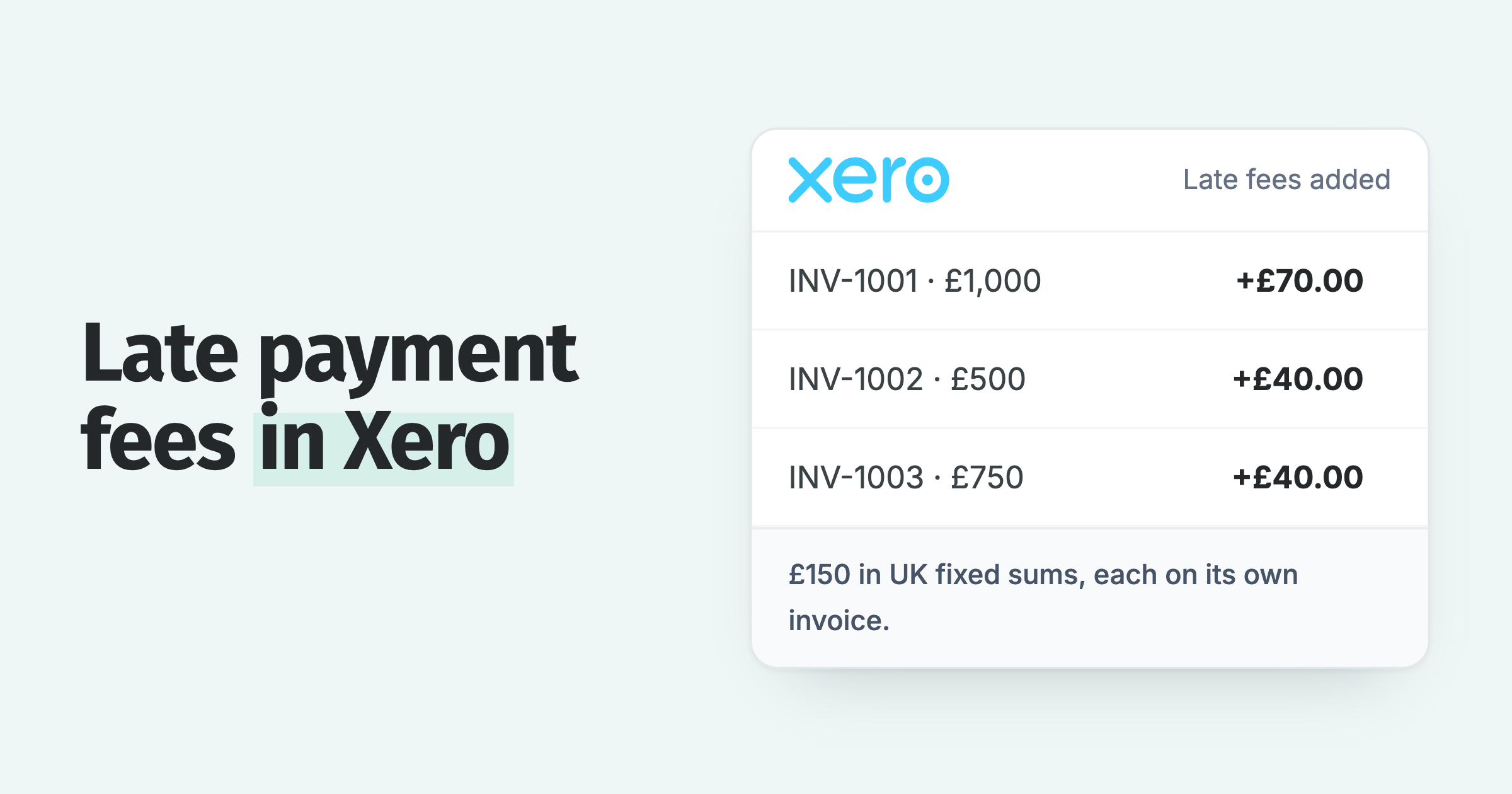
That is a reminder loop, not an escalation. Escalation is the part your credit controller does manually today: at 30 days they add a late fee, at 45 they draft a final notice, and when a big customer's balance gets uncomfortable they walk over to sales and ask them to hold the next order. The accounting platform has no concept of any of that. It cannot send an SMS reminder, create a task for a person, or notify an owner, and it cannot add a fee (QuickBooks Online adds late fees natively in the US only). Outside the US there is no native fee setting at all, so a UK business has to add a late fee in QuickBooks manually or through a connected app. So the escalation stays manual, which means it happens late, unevenly, or not at all.
To automate it you connect an accounts receivable layer on top of Xero or QuickBooks. Paidnice reads your invoices and contacts from the ledger and runs the rules the ledger cannot. We built the escalation triggers for exactly this gap between a repeating reminder and a real, aging process.
Free: Payment reminder email templatesCopy the reminder emails for before, on and after the due date.What is an escalation trigger?
Every trigger reads the same way: when this is true, do that. The condition is something Paidnice can see in the ledger, for example days overdue, the customer's total overdue balance, the contact group they belong to, or whether the last reminder was opened. The action is something Paidnice can do: send an email or SMS, apply a late fee, generate a statement, create a task for a named team member, or draft a final notice for a person to approve.
Make the count of overdue invoices an escalation trigger. A reminder works best on a customer with nothing else overdue: it gets about 26 more invoices in every 100 paid within a week. For a customer with 4 or more overdue invoices, it gets only 1 to 4 more.
The difference between a reminder and an escalation is that the action escalates. A first reminder is a friendly note. A second is a firmer note plus a late fee. A third routes to SMS because email is being ignored. A fourth creates a task for a human and drafts a final notice. Each step is a separate trigger, and together they form a ladder. If you want the full progression written out, we cover it in the invoice escalation ladder.
Triggers also route by who the customer is, and by how late they are. A VIP on a contact group gets a gentle nudge and never an automated fee. A repeat late payer gets the full ladder. That is the "firm on the money, fair to the customer" part, and it is the reason a flat reminder schedule feels blunt: it treats your best account and your worst account exactly the same.
Which three escalation triggers should you build first?
Feature pages tell you triggers exist. They rarely tell you which ones to build. Here are three we run and recommend, written the way you would set them up. Two of them touch a customer relationship, so both carry an approval step. More on why below.
The notice is written and queued, but a person clicks send. Nothing leaves the building until someone confirms this is the right account.
Credit risk climbs with the balance, not the calendar. This catches the customer who is current on old invoices but stacking up new ones.
A text is harder to miss than a fourth email in a full inbox. Safe to run without a gate: it is the same message on a louder channel. SMS is US$0.10 per message.
Set the balance threshold in recipe 2 to a number that would actually worry you, not a round default. For a business doing up to $50m a year, a customer sitting past $8,000 overdue is a different conversation than one past $400. And keep recipe 3 for customers who are ignoring you, not customers who are simply slow. A contact group of reliable payers should never get bumped to SMS for being a few days late.
Recipe 3 works for customers in any country. Paidnice SMS sends worldwide to any valid mobile number, with dedicated sending routes for the US, UK, Australia and New Zealand, and Paidnice sends from its own registered US numbers, so in the US there is nothing to register with a carrier.
How do you set up automatic invoice escalation?
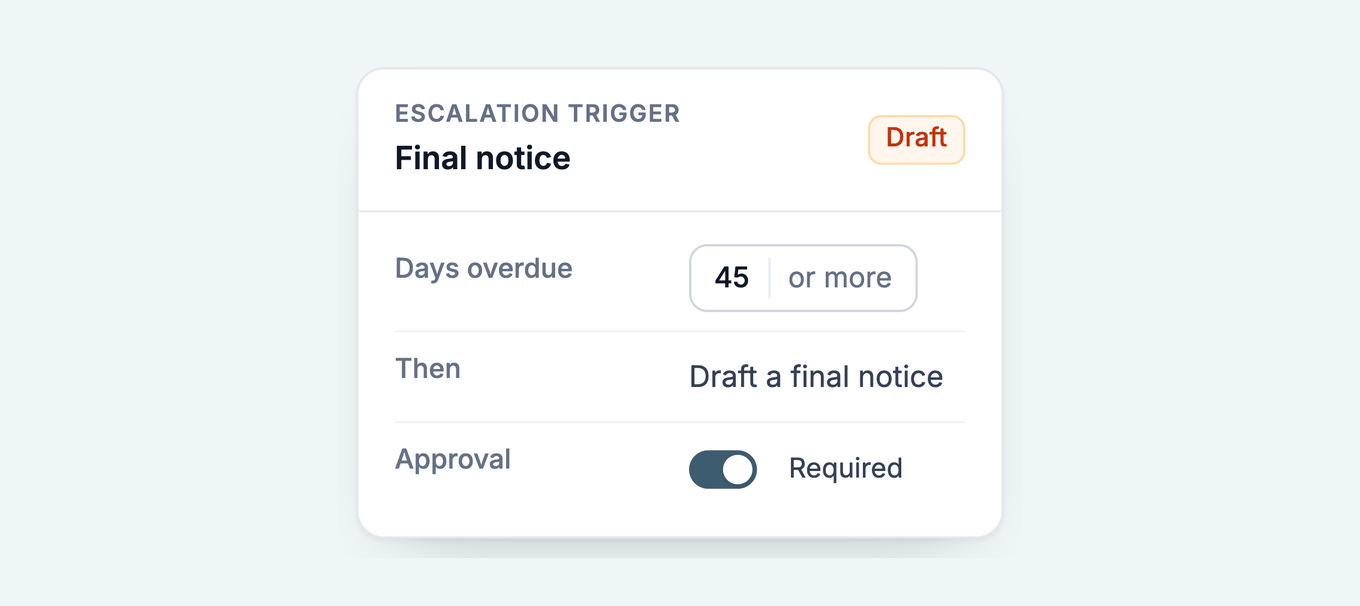
The setup is a builder, not a script. You pick a condition from what the ledger knows, pick an action, and decide whether it runs on its own or waits for a person. Here is what the escalation trigger builder looks like for recipe 1.
Escalation trigger
Final notice at 45 days · applies to: Repeat late payers
When
Then
Skip
The order of operations is worth getting right. Connect the ledger first, so Paidnice can read live invoice and contact data. Then set up your overdue alerts and contact groups, because routing is what keeps the ladder fair. Only then build the triggers. Start with the reminders and the SMS switch, which are safe to run automatically, and leave the final notice and the order hold gated until you trust the data.
Should an escalation skip an invoice with a promised payment or an open query?
Paidnice has a switch for each. On an escalation, turn on skip when promised and skip while a query is open, and the trigger leaves that invoice alone. Reminders and late fees have the same two switches.
A promise reaches Paidnice in two ways. The customer promises a date from the invoice page in the customer payment portal, or your team records one after a call with the date, the amount and a note. Recording it can also set the expected payment date on the invoice.
Triggers with the switch on wait until that date. If the promise is marked broken, the person the invoice is assigned to can get a Broken Payment Promise email, and a customer promised to pay and didn't covers what to say next.
A query works the same way. A customer can query an invoice from the portal and give a reason, and triggers with the switch on skip it while the query is open. When you cannot tell whether silence means a dispute, a delay or a cash problem, sort that out before you set the day for a final notice.
Why keep a person on the sharp actions?
I will be straight about this, because we learned it the slow way. If you fully automate the top of the ladder, the math is not on your side. Run a final-notice trigger across a few thousand invoices a month and the day will come when it fires on a customer who paid yesterday, or who has a legitimate query nobody has logged yet, or who is your single biggest account having one bad month. The trigger was technically correct. The outcome still costs you the relationship.
The fix is not to slow the automation down. It is to split the ladder. The routine steps (reminders, a standard late fee, a channel switch) run on their own because the cost of a mistake is low. The sharp steps get drafted automatically and then wait. Paidnice writes the final notice, queues the order hold, and a person spends ten seconds confirming it is the right call before it goes out. You keep the speed on the safe 90% and the judgment on the risky 10%. We wrote up how the approval step works in pre-approve draft actions.
This is the whole reason Safe Mode exists in the product. New triggers draft their actions without sending, so you can watch a week of real invoices flow through the rules and see exactly what would have gone out before you let anything go live.
How do you measure whether escalation is working?
The wrong metric is how many reminders you sent. That measures noise. Watch three things instead.
First, days to payment. Across our customers, the average wait for payment gets cut in half within 30 days of turning the system on, so you should see the gap between invoice date and paid date shrink month over month. Second, overdue balance recovered: track the dollars sitting past due before and after, and the share of them that comes in without a human touching it. Customers get 8 in 10 invoices paid within the first 60 days of using Paidnice, and manual follow-up drops by up to 90%, which frees your AR person for the accounts that genuinely need a call. Third, and least obvious, count how often the sharp triggers fire. If final notices and order holds trend down over a quarter, escalation is doing its job upstream: customers are paying at the reminder and late-fee stage, before it ever gets tense.
Frequently asked questions
Can Xero send an escalation instead of the same reminder?
No. Xero reminders send the same email on a schedule. Xero cannot change the action, add a late fee, switch to SMS, or create a task for a person as an invoice ages, so escalation needs a connected accounts receivable app on top of Xero.
Does QuickBooks Online have an overdue invoice workflow?
QuickBooks Online has automatic reminders, and in some regions reminder sequences, but every step is the same reminder email to the same contact. It has no built-in way to escalate the action or route by customer, which is the part a connected AR app handles.
What is an escalation trigger?
An escalation trigger is a rule with two halves: a condition that describes an invoice or customer, and an action that fires when the condition becomes true. When the action changes as the condition sharpens, for example days overdue rising from 30 to 45, you have escalation rather than a repeating reminder.
How do I automate collections in Xero without upsetting customers?
Route by customer group so VIPs get a gentle nudge and repeat late payers get the full ladder, switch on skip when a payment is promised and skip while a query is open, and put a draft-and-approve gate on the sharp actions. Paidnice drafts final notices and order holds, then waits for a person to confirm before sending.
What should the first three escalation triggers be?
Start with a final notice at 45 days that creates a task and drafts the notice for approval, an order hold when a customer's overdue balance crosses your threshold, and a switch to SMS after the second reminder is ignored. The first two carry an approval step; the SMS switch is safe to run automatically.
How much does an SMS escalation cost?
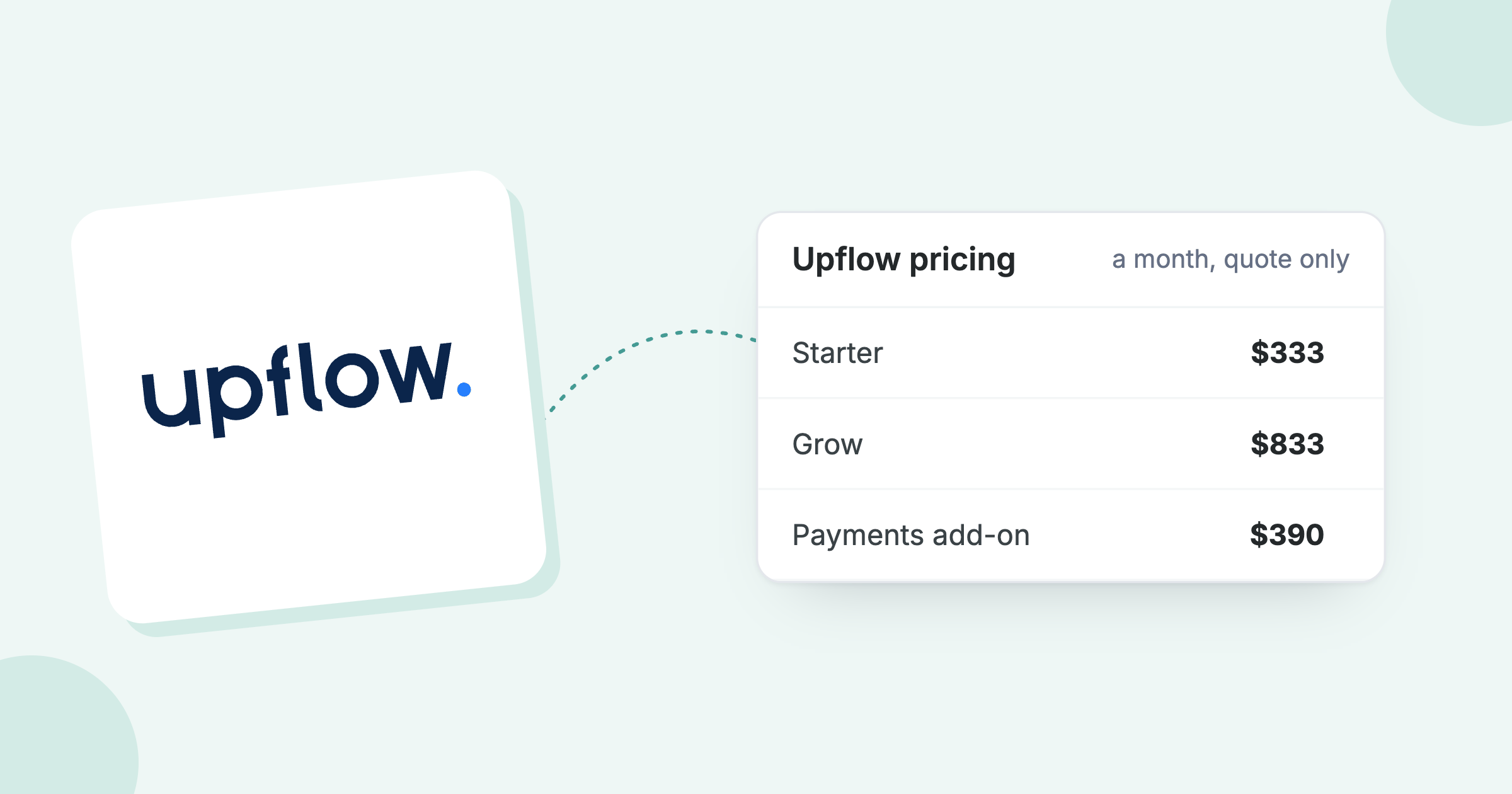
SMS reminders start at US$0.10 per message, with pricing that varies by currency. Paidnice plans start at US$69 per month for Essentials, with no per-seat fees.
See how escalation triggers work →
Paidnice features in this article
About the editorial team
Ashley is a co-founder and lead developer of Paidnice and has built accounting software for more than 10 years. He builds the ledger connections that put reminders, late fees and payments into Xero, QuickBooks and ERPs such as NetSuite and Business Central. Before Paidnice he co-founded A2X, ecommerce accounting software for Xero and QuickBooks.
Denym started Paidnice in 2022 after customers paying late left his own business short on payroll. He has led it to $1 billion collected on time across more than 1 million invoices, and writes about credit control, late fees and getting paid on Xero and QuickBooks.
 App of the Year