



Summary
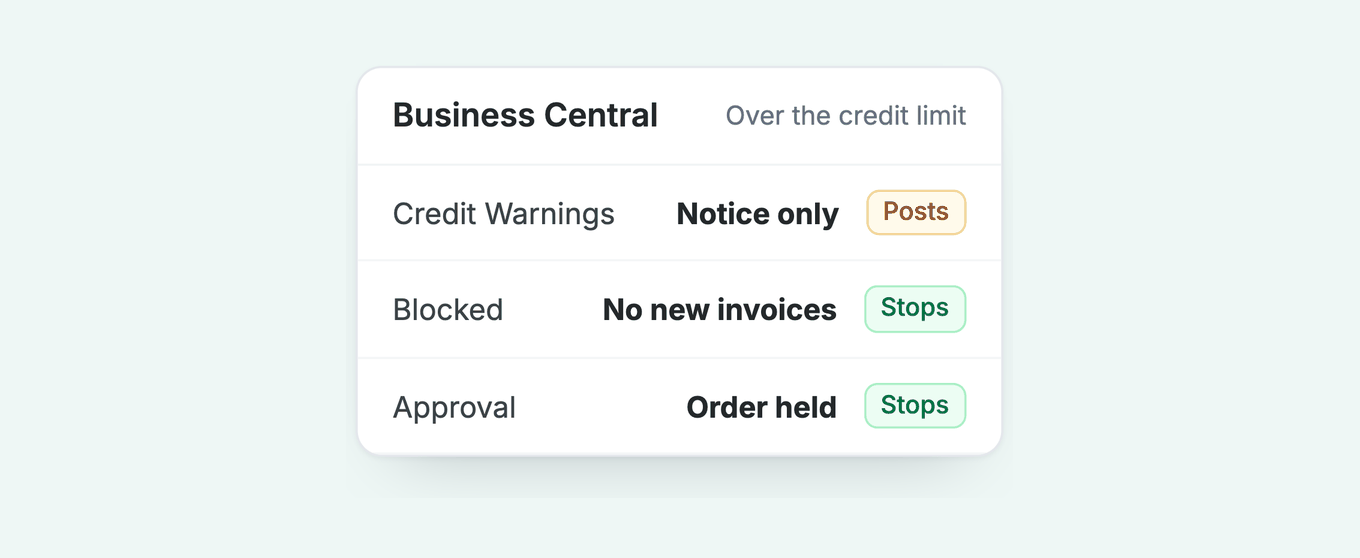
To stop an order in Business Central you set the Blocked field, add an approval workflow or install an extension. The credit limit itself only warns; partner guides describe a notice the user can click past. You chase the debt separately.
- Warn: Credit Warnings (Credit Limit, Overdue Balance, Both Warnings, No Warning) show a notice on journals, quotes, orders and invoices, and users can post past it.
- Block: The Blocked field (Ship, Invoice, All) is a separate manual control. A customer blocked for Invoice can still be sent reminders and finance charge memos.
- Approve: The Sales Order Credit Limit Approval Workflow template holds an order that breaks the limit until an approver acts.
- Paidnice: A credit limit set in Paidnice can raise an escalation when a customer goes over it, and credit checks run through your Creditsafe API connection on the Custom plan.
Paidnice connects to your ERP on the Custom plan. Book a demo on your own data, and a specialist sets up the connection.
An order is entered, the limit is passed, a warning shows, your salesperson clicks OK, and the order posts. That is by design: partner guides from Stoneridge and Rand Group describe the result as a warning the user can click past, and nothing on Microsoft's customer card page describes a block.
Here is what each credit setting in Business Central does, which ones stop an order, what a blocked customer still receives, and who picks up the debt after the block.
Free: Payment reminder email templatesCopy the reminder emails for before, on and after the due date.How does a credit limit work in Business Central?
A credit limit in Business Central is the most a customer's balance can reach before Business Central warns the user. It is the Credit Limit (LCY) field on the Customer Card (General FastTab, in local currency) that Business Central compares with the customer's balance and open orders when you enter a document.
Microsoft's customer card guide says the Credit Limit (LCY) field sets the maximum a customer's balance can reach before warnings are issued. Business Central tests the header and lines of journals, quotes, orders and invoices against it. A blank field means no credit limit.
The balance it checks is wider than posted invoices. Per the partner guides, exposure is the posted balance plus outstanding orders and shipments not yet invoiced, less outstanding returns, uninvoiced return receipts and prepayments.
Stoneridge Software's guide to credit limits says it includes outstanding orders and shipments not yet invoiced, and the limit shows in bold red italics on the card once exceeded. The check ignores order dates, so an order due to ship next quarter counts today.
What happens when an order breaks the credit limit?
Nothing stops it. A credit warning is a notice. Partner guides from Stoneridge and Rand Group describe the result as a warning the user can click past, and nothing on Microsoft's customer card page describes a block. The setting lives in Sales & Receivables Setup, on the General FastTab, with four options:
- Both Warnings: checks Credit Limit and Balance Due, and warns on either.
- Credit Limit: warns when the balance passes the limit.
- Overdue Balance: warns when the customer has an overdue balance.
- No Warning: nothing.
Overdue Balance is a warning too. Nothing native puts a customer on stop after a set number of overdue days, and Rand Group's guide to credit limit locks describes no such setting. Users can also switch the notices off under My Notifications, as a Business Central blogger notes.
A hard stop needs the Blocked field, an approval workflow, or code. Partner add-ons such as Rand Group's Credit Manager, Clever Credit and Extended Credit Check advertise order holds on a limit or overdue breach, temporary limits and a log of who lifted a hold; check each listing for which of those it does.
| Setting | What the user sees | Does it stop posting? | Risk |
|---|---|---|---|
| Credit Warnings = Credit Limit Microsoft | Notice when the balance passes the limit | No | Users click past it |
| Credit Warnings = Overdue Balance Microsoft | Notice when the customer has an overdue balance | No | Same |
| Both Warnings Microsoft | Both notices | No | Same |
| No Warning Microsoft | Nothing | No | Silent breaches |
| Blocked = Ship Microsoft | Cannot create orders or shipments | Yes, for shipping | Existing shipments can still be invoiced |
| Blocked = Invoice Microsoft | Cannot create orders, shipments or invoices | Yes, for invoicing | Reminders and memos still go out |
| Blocked = All Microsoft | No transactions | Yes | Blocks payments too |
| Approval workflow Stoneridge | Order held, status Pending Approval | Yes, for release and posting | A missing approver holds everyone |
| Add-on or code Business Central blog, Rand Group | Per extension | Yes, if built | Partner cost; test every release |
What do Ship, Invoice and All block?
Blocked = Ship stops new orders and shipments, Invoice also stops new invoices, and All stops every transaction including payments. A customer blocked for Invoice can still be sent reminders and finance charge memos.
Microsoft's page on blocking sales to customers sets out the four values of the Blocked field on the Customer Card:
- Blank: transactions are allowed.
- Ship: no new orders or shipments. Existing shipments not yet invoiced can still be invoiced.
- Invoice: no new orders, shipments or invoices, and existing shipments cannot be invoiced. Reminders and finance charge memos can still be sent.
- All: no transaction at all, including payments.
Invoice is the value to use when you want to keep chasing: reminders and interest still run, which is how blocked customers still get reminders. All stops you posting the customer's own payment, so lift it before you apply the cash. Business Central does not call any of this a credit hold; the control is the Blocked field.
Can an approval workflow stop the order?
Yes. The Sales Order Credit Limit Approval Workflow template holds an order that breaks the limit until an approver acts, and the approver must exist in Approval User Setup.
Stoneridge's guide describes the template and its event, "A customer credit limit is exceeded". An order over the limit goes to Pending Approval and cannot be posted until the approver releases it. A Sales Invoice version of the template exists too.
Two templates share the words "credit limit", and they do different jobs:
- Sales Order Credit Limit Approval Workflow: holds a sales order that exceeds the limit.
- Customer Credit Limit Change Approval: fires when someone changes the Credit Limit (LCY) field itself. A Business Central blog shows the old value stays in force until the change is approved.
When an order sits in Pending Approval with nobody able to release it, the usual cause is a user missing from Approval User Setup. Check that table first.
What happens after a customer goes over the limit?
Business Central stops at the warning, the block or the approval. Nothing in it chases the debt, so someone has to start the collection steps.
Reminders are a separate process, driven by reminder terms and levels, with no link to Credit Warnings. The Late Payment Prediction extension predicts which posted invoices will be paid late, but it does not send or change a reminder. The decision to call, hold the next order or offer a payment plan sits with a person.
One overdue invoice is the signal to review credit. A customer with 1 overdue invoice is about 3 times as likely to leave the next invoice unpaid 75 days after its due date (14 in 100 against 5 in 100), in Paidnice data. With 4 or more overdue invoices, it is about 5 times as likely (26 in 100).
The useful trigger is the count of overdue invoices as well as the balance. A customer under their limit with three overdue invoices is a bigger risk than one over it with none.
Payment timing agrees: after a payment 1 to 7 days late, a customer's next invoice is paid on time 28 in 100 times, against 82 in 100 after an on-time payment (one late payment).
How Paidnice handles a credit limit breach on Business Central
Paidnice connects to Business Central on the Custom plan. Paidnice follows the integration pattern Microsoft documents for Business Central: a Microsoft Entra app registration signed in with client credentials, an entry on the Microsoft Entra applications page in each environment you connect, and a permission set limited to the records Paidnice reads and writes, all set up in your tenant.
An implementation specialist handles setup. Once customers, sales invoices, sales credit memos and customer payments sync, the credit steps run in Paidnice:
- A credit limit per customer, set in Paidnice. Going over it can trigger an escalation, and so can the customer's total balance.
- An escalation with an owner. Escalate to call, escalate to stop credit, or escalate with a template legal letter. Each one is assigned to a person, with instructions.
- Credit checks through your Creditsafe API connection, on the Custom plan, so a new customer's limit starts from bureau data rather than a guess. Native credit checks from each customer's payment behaviour run on every plan.
- Notes. Call and reply notes are kept in Paidnice, and the location in Business Central is agreed at implementation.
The block stays a Business Central decision; Paidnice makes sure a person is told to make it. Read about Paidnice for Dynamics 365, or compare tools in our guide to credit control software for Business Central.
Common questions
What happens when an order breaks the credit limit?
Nothing stops it by default. A credit warning is a notice the user can click past, and nothing on Microsoft's customer card page describes a block. To stop an order, use the Blocked field, an approval workflow or an extension.
Can Business Central put a customer on credit hold automatically?
Not natively. Business Central uses the Blocked field, set manually on the Customer Card. A workflow, a Power Automate flow or an add-on can set a block for you.
Why is my credit limit approval workflow not releasing the order?
The approver or the requesting user is usually missing from Approval User Setup. Add them and release the order again.
How do I calculate a credit limit for my customers?
Start from how much the customer buys in one payment cycle, then adjust for how they have paid you so far. An overdue invoice is a reason to review the limit.
Does Paidnice set a credit limit for Business Central customers?
You can set a credit limit per customer in Paidnice, and going over it can raise an escalation to a named person.
Paidnice features in this article
About the editorial team
Ashley is a co-founder and lead developer of Paidnice and has built accounting software for more than 10 years. He builds the ledger connections that put reminders, late fees and payments into Xero, QuickBooks and ERPs such as NetSuite and Business Central. Before Paidnice he co-founded A2X, ecommerce accounting software for Xero and QuickBooks.


 App of the Year