



Summary
Business Central reminders chase overdue invoices through reminder terms: each set holds levels that control when a reminder is created, what it says, and whether it adds a fee or interest. Reminder Automation can then create, issue and email them on a schedule.
- Set four levels a week apart: In Paidnice data, 9 in 10 reminded invoices are paid after four email reminders, and half of the payments made within 14 days of a reminder arrive within 3 days.
- Send on Monday or Tuesday: Inside the same business, about 6 more overdue reminders in every 100 are paid within 3 days when sent on a Monday or Tuesday rather than Wednesday to Friday.
- Where Business Central stops: Its reminder process does not read customer replies or record a promised payment date, and Microsoft's reminder docs list email and print only. Paidnice adds those on Business Central through the Custom plan.
Paidnice connects to your ERP on the Custom plan. Book a demo on your own data, and a specialist sets up the connection.
Your Business Central reminder run went out on Monday. By Wednesday, three customers have replied in Outlook: one disputes a price, one says they will pay on the 14th, and one asks for a copy invoice. None of that is in Business Central, and next week's run will remind all three again.
Here is how to set up reminders in Business Central so the right customers get the right message, a level plan built from Paidnice data, texts you can paste in, and the steps Business Central leaves to you.
How do you chase overdue invoices in Business Central?
Create reminder terms with levels, give each customer a terms code, then create, issue and send reminders manually or on a schedule. In order:
- Finance charge terms, only if you charge interest. Search for Finance Charge Terms and set a code.
- Reminder terms. Search for Reminder Terms and create a code for each customer group that needs a different sequence.
- Reminder levels. Select a code, choose Levels, and set the wait, the due date and any fee for each level.
- Texts. Write the beginning and ending text for each level, plus the email text under Customer Communication.
- Customers. Put the reminder terms code on each Customer Card.
- Automation. Search for Reminders Automation to open the Reminder Automation page, and add create, issue and send actions with a cadence.
- Disputes and statements. Enter an On Hold code on disputed entries, and send the Customer Statement report on a schedule.
To create reminders manually, search for Reminders and choose Create Reminders, which builds one reminder per customer that has overdue entries. To build a single customer's reminder, start a New reminder for them and let Suggest Reminder Lines add the overdue entries.
The Report Selection Reminder/Finance Charge page is where you pick the report that builds the reminder and the report that holds the email body text. Microsoft's own steps are in its guide to setting up reminder terms and levels. The sections below add what those steps leave out: how many levels, how far apart, and what each one says.
Terms are set per customer on the Customer Card, not per invoice, so two terms codes is the most you need to treat two kinds of customer differently. Creating, issuing and sending are three separate steps, whether you run them manually or through Reminder Automation.
Free: Payment reminder email templatesCopy the reminder emails for before, on and after the due date.What reminder levels should you set up in Business Central?
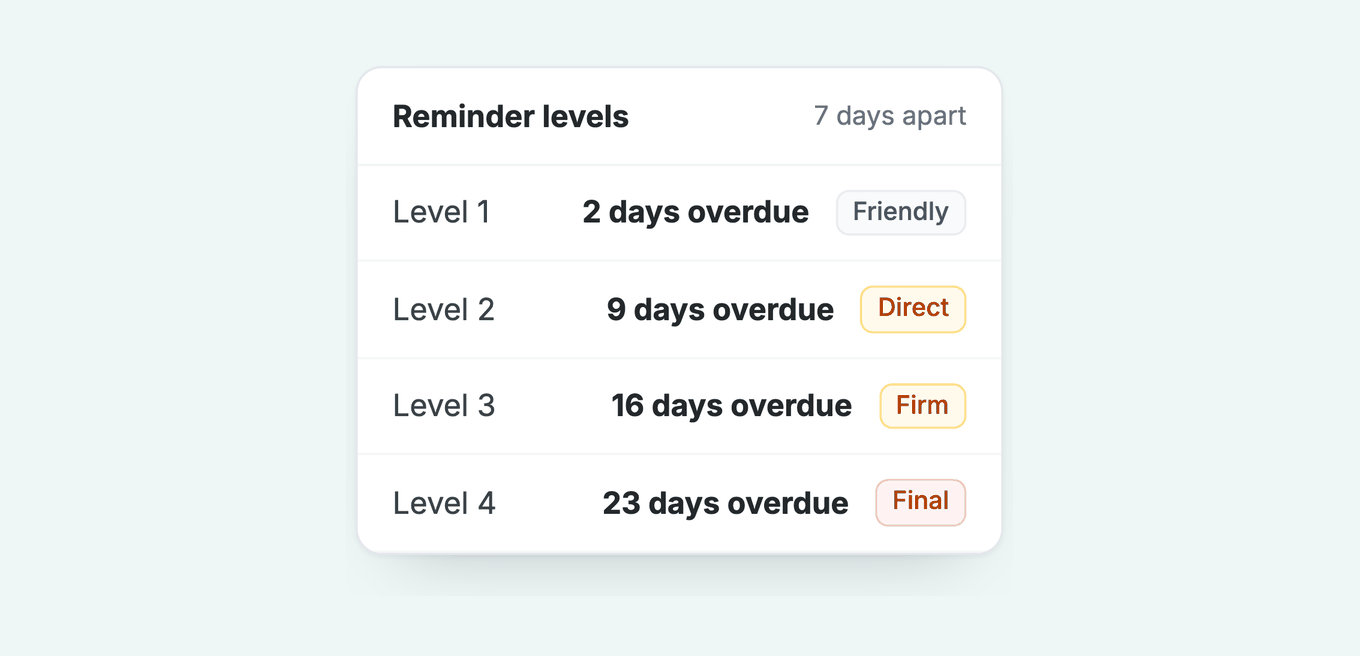
Set up four reminder levels in Business Central about a week apart, starting soon after the due date, with the run on a Monday or Tuesday. Microsoft notes that most companies use only two or three levels. A fourth gives one more step before the account goes to a person.
Each level has a Grace Period, the wait before that level's reminder is created, and a Due Date Calculation, a date formula for the new due date printed on the reminder. The Grace Period also stops a reminder for an invoice the customer has just paid or that is only just overdue.
Microsoft's current reminder pages do not state whether a later level's Grace Period counts from the invoice due date or from the previous reminder's due date; older NAV training material describes the second. Level 1 counts from the invoice due date. Our plan assumes the second, so each gap is the Due Date Calculation plus the next level's Grace Period.
Issue a test reminder in a sandbox company to check the dates before you rely on them. Here is the plan we suggest, with a 7-day gap:
| Level | Grace Period | Due Date Calculation | Tone | Fee or interest |
|---|---|---|---|---|
| 1 | 2D after the due date | 5D | Friendly: a copy of the invoice and a way to pay | None |
| 2 | 2D | 5D | Direct: the amount, the days overdue, a date to pay by | None |
| 3 | 2D | 5D | Firm: what happens next if it stays unpaid | Interest, if your terms allow it |
| 4 | 2D | 7D | Final notice: the account goes on stop and to a named person | Interest and any fee |
If that reading holds and the automation runs daily, the four levels go out at about 2, 9, 16 and 23 days overdue. With a weekly run, each one goes out on the first run after that date. Confirm the dates on a test reminder in a sandbox before you rely on them.
Set Max. No of Reminders to 4. If you create more reminders than you have levels, Business Central keeps using the highest level, so a fifth reminder would repeat the final notice. Hand the account to a person instead.
Can Business Central remind customers before the due date?
Not as a documented setting: Business Central reminder levels count from overdue days, and Microsoft describes no "N days before due" option. Microsoft's reminder pages treat reminders as tools for overdue amounts.
The Create action in Reminder Automation can list unpaid invoices that are not yet due in their own section, but only on a reminder that an overdue entry already started. A customer with nothing overdue gets no reminder.
Two workarounds appear on the Microsoft community forum. One runs Create Reminders with a later Document Date, so entries count as overdue, then corrects the Posting Date when issuing. The other puts a negative Due Date Calculation on level 1, which the person who asked could not enter.
They conflict and Microsoft does not support either, so test in a sandbox. The other routes are an AppSource app, Power Automate, or a customer statement sent early.
Paidnice sends reminders before the due date on Business Central, with a Pay now link in each one. See what Business Central's built-in reminders still miss.
Why four levels, a week apart, on a Monday or Tuesday
The Business Central reminder plan of four levels a week apart follows what Paidnice sees across customers' invoices:
- Chase after the due date, not only before it. Only 13% of paid invoices are paid on the due date itself, and 19% are paid in the week after. Source: when customers pay.
- Four levels, a week apart. Counting email reminders alone, 6 in 10 invoices are paid after one reminder and 9 in 10 after four. Half of the payments that follow a reminder arrive within 3 days, so a week is enough to see whether a level worked; the one-week spacing is our suggestion, not a tested result. Source: reminder spacing.
- Run it on Monday or Tuesday. Inside the same business, about 6 more overdue reminders in every 100 are paid within 3 days when sent on a Monday or Tuesday rather than Wednesday to Friday. Source: the best day to send a payment reminder.
Customers with a stack of overdue invoices need a person. For a payer with no other overdue invoice, a reminder is followed by about 26 more invoices in every 100 paid within 7 days. For a payer with 4 or more overdue invoices, it is only 1 to 4 more.
Give key accounts their own reminder terms code with longer grace periods. Business Central applies terms per customer, so two codes cover most businesses.
What should each reminder level say?
Each reminder level needs a beginning text with the amount and date, and an ending text that says what to do next.
Business Central fills in the figures from placeholders: %9 is the currency code, %7 the reminder total, %2 the reminder due date and %11 your company name.
Paste these into Beginning Text for each level and change the wording to suit your customers:
Write the email body under Customer Communication on the Reminder Terms Setup page, for all levels or one level at a time. If you send in more than one language, add the same languages to the attachment text and the email text. Microsoft warns that automation may not build the message for every level when they do not match.
In Business Central 29, the new communication texts for reminder terms become mandatory: Microsoft lists the feature update under optional features that are now mandatory. Check that the attachment and email languages match before the update lands.
If you delete a line after the text is filled in, the total in the text does not change on its own. Choose Update Reminder Text before you issue.
How do you automate reminders in Business Central?
Reminder Automation became generally available on 1 April 2024 (Business Central 24, public preview from 1 March 2024), and Microsoft's what's-new pages for Business Central 27 to 29 list no later change to it other than the mandatory communication texts.
On the Reminder Automation page, one automation can create, issue and send reminders for the reminder terms you choose, on a schedule set by the Cadence field. Microsoft's automation guide lists every setting.
- Search for Reminders Automation to open the Reminder Automation page, choose New, and pick the codes in Reminder Terms Filter.
- Set Cadence to Weekly. Manual runs once when you choose Start. To run on a Monday, open Job queue entries and set the recurrence there.
- Add three actions on the Actions FastTab and order them Create, Issue, Send with the Move up and Move down actions.
- In the Send setup, choose email, set how many times the same reminder can be sent, and pick which invoices go with it as PDFs: overdue only, every open invoice, or none.
- Choose Set stop on error on the Create action, so a failed create does not issue or send anything.
The Create action has three useful settings. It can list unpaid invoices that are not yet due in their own section, include entries on hold, or put every line on the highest level.
Send needs an email account connected to Business Central. After the first runs, check Log entries and Issued Reminders.
Why did Reminder Automation not send?
The most common reason is that the automation has no Issue action: Create alone builds drafts, and Send only emails reminders that were issued. That is the accepted answer on the Microsoft community forum thread on reminder emails not going out. Work through this list:
- Add the Issue action and order it between Create and Send.
- Set up email in Business Central and connect an account.
- Set a Cadence other than Manual, and check the job queue entry status is Ready, not paused.
- Give every customer a reminder terms code inside the Reminder Terms Filter, and an email address or a document layout.
- Tick Use for Email Body on Report Selection Reminder/Finance Charge, or the email body is blank.
- Match the attachment and email languages. On the forum, one user fixed a Reminder Terms Filter that did nothing by switching the language to English (US).
- Check Minimum Amount (LCY) on the reminder terms. Microsoft describes it as the minimum outstanding amount for a reminder to be generated, so a customer below it gets none.
- Apply payments and credit memos before the run. Reminders list open entries, and Microsoft's send reminders page says invoices and payments are the entries shown, so an unapplied receipt leaves the invoice open and reminded, with the payment on a separate line.
- If Post Interest or Post Additional Fee is ticked, issuing posts entries. The posting date must sit inside the Allow Posting From and Allow Posting To dates on General Ledger Setup, or on the User Setup line for the user the job queue runs as, or Issue fails at month-end close.
What happens when you issue a reminder in Business Central?
Issuing a reminder turns the draft into a posted document: it moves to Issued Reminders and creates reminder entries. Delivery is a separate step: the Send action in Reminder Automation, or the print or email option on the Issue Reminders page, which sends the reminder as a PDF.
If Post Interest or Post Additional Fee is ticked on the reminder terms, issuing also posts the amount to the customer ledger and the general ledger, and it can create VAT entries. Customer posting groups decide which accounts are used.
If a reminder was issued in error, open Issued Reminders, select it and use Cancel before it is sent. It works one at a time or as a batch. Cancel on Issued Reminders arrived in the October 2019 update and works only before the reminder is sent.
Calculate Interest on a level only puts interest on the reminder. Post Interest on the reminder terms decides whether that interest is posted. Check both before your first run.
Who receives a reminder, and can you CC someone?
Business Central sends a reminder to the customer's email or to the addresses on the Document Layouts for the Reminder usage, and it has no native CC or BCC.
To set the recipients, open the Customer Card, choose Document Layouts, add a row with usage Reminder and use Select Email from Contacts. Several addresses go in one field, separated by semicolons with no spaces. Microsoft's document layouts guide has the steps.
Forum answers say the fallback is the E-Mail on the card. Whether the Reminder layout is honoured in every case is not confirmed, so send a test reminder to yourself first.
For a copy to a colleague, the verified forum answers are: an Exchange mail rule, a shared mailbox or distribution group as the recipient, a manual CC when previewing from Issued Reminders, Power Automate with a custom API, or an AL extension. One AppSource add-on adds a default Cc and Bcc per document.
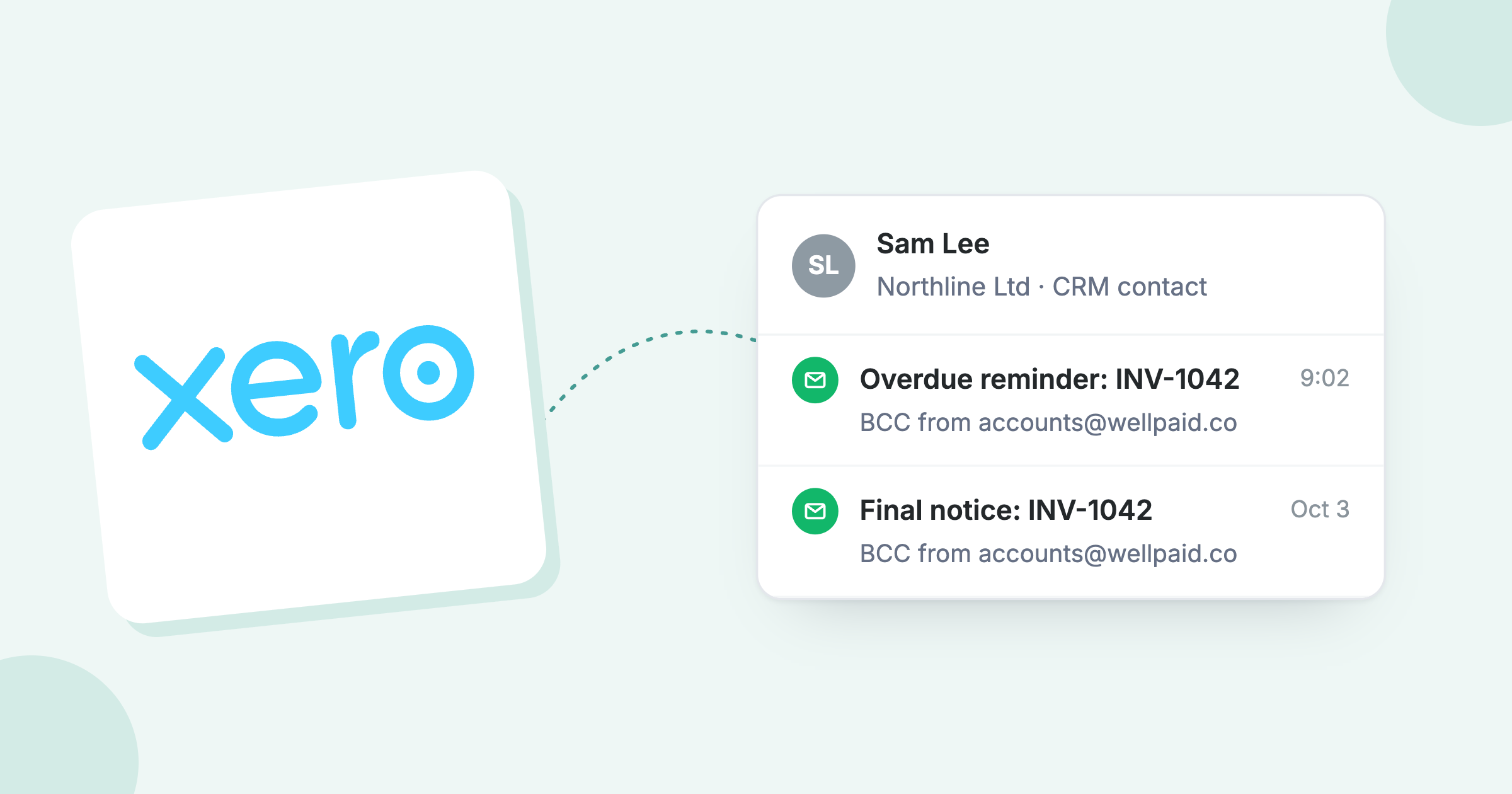
Paidnice can send a copy of every email to your own inbox or CRM address with a BCC on the sender profile.
How do you charge interest and fees on overdue invoices in Business Central?
In Business Central, interest on overdue invoices comes from finance charge terms, and fees come from reminder levels. Set both up before you tick Calculate Interest on any level.
Finance charge terms calculate interest in one of two ways, set per code (formulas from Microsoft's finance charge guide):
| Method | Formula | Use it when |
|---|---|---|
| Average daily balance | Overdue amount x (days overdue / interest period) x (interest rate / 100) | You charge interest by the day, as UK statutory interest works |
| Balance due | Overdue amount x (interest rate / 100) | You charge a flat percentage, whatever the days overdue |
Finance Charge Terms can hold different rates for different periods: Microsoft's own example is a rate that changes twice a year, on 1 January and 1 July. Suggest Finance Charge Memo Lines handles positive amounts only, so the Payment and Credit Memo filters change nothing.
Finance Charge Terms also carry an Interest Calculation field: Open Entries, Closed Entries or All Entries. Open Entries charges unpaid invoices. Closed Entries or All Entries also charges invoices that were paid late, which a reminder cannot do, because reminders cover open entries only.
Fees on a level can be Fixed, Single Dynamic or Accumulated Dynamic, and each level can hold a fee per currency. With no currency fee set, Business Central converts the local currency fee.
A level also has an Add. Fee per Line, a fee on each overdue invoice listed, posted when Post Add. Fee per Line is ticked on the terms.
To charge interest with no reminder, use a finance charge memo instead.
In the UK, the Late Payment of Commercial Debts (Interest) Act lets a business claim interest at the base rate plus 8 percentage points, and a fixed sum per invoice that depends on its size: £40, £70 or £100. The statutory interest calculator works out both for one invoice.
Business Central has no UK statutory interest feature, so someone adds a new rate row each half-year; see late payment interest and VAT in Business Central.
Business Central can charge a fee per overdue invoice through Add. Fee per Line, with the £40, £70 and £100 bands set as Threshold Remaining Amount rows on the Additional Fee Setup page. Set it on one level so each invoice is charged once, and test it in a sandbox; we have not confirmed every band edge.
How do disputed invoices work with Business Central reminders?
To stop reminders on a disputed invoice in Business Central, enter a code in On Hold on the customer ledger entry. That entry no longer starts a reminder, and Business Central adds no interest to it.
It can still appear. If another overdue entry starts a reminder for the same customer, the on-hold entry is listed on it.
Microsoft's send reminders page says the Create action can include entries on hold. Leave Include Entries On Hold unticked unless you want them, and check the lines before you issue, because an on-hold entry on the reminder still shows to the customer.
On Hold holds a code of up to three characters, not the reason or a review date. Keep both where the team can see them, or the hold stays on after the dispute is settled. Our guide to handling a disputed invoice covers the steps to settle it.
In Paidnice, a customer can dispute an unpaid invoice from the portal with Query this invoice, and policies set to Skip while a query is open pause the chase until it is resolved.
How do you send customer statements from Business Central?
To send customer statements from Business Central, run the Customer Statement report, or create a statement from the customer card and send it as a PDF.
Set the date range, choose open entries only if you want unpaid items alone, and add aging if you want overdue amounts grouped. The last date of the period is also the statement date and, if aging is included, the aging date.
Statements print in the customer's own currency when you invoice in several. You can send a statement to Excel to change it first. A monthly statement suits customers who pay several invoices in one run.
To email statements in bulk, leave the customer filter blank and set the output to Email. Forum users report that customers with no document layout or email address get a PDF in Downloads instead, so check the list afterwards.
Set the layout per customer: on the Customer Card, Document Layouts with usage Customer Statement holds the email body and attachment layout, and Microsoft's own example sends statements to the customer's accountant.
A report can be scheduled from Send to, then Schedule, on the job queue, though not every report can email. A reminder's Send setup attaches overdue invoices, all invoices or none; it has no option to attach the statement. Paidnice sends statements automatically with a Pay now link.
Where do Business Central reminders stop?
Business Central reminders stop at the customer's reply: the system sends and posts reminders well, but replies, promised dates and dispute notes sit in someone's inbox.
| Job | Business Central | Paidnice on Business Central |
|---|---|---|
| Scheduled reminders | Yes, by reminder terms and Reminder Automation | Yes, from your own domain, by customer group |
| Read customer replies | Not in the reminder process | Reads each reply and drafts the answer for a person to approve |
| Record a promised date | No field in the reminder process | Logs the date and holds reminders until then |
| Stop when paid | Paid entries are left off the next reminder created | As soon as the payment, credit memo or invoice change syncs |
| SMS and posted letters | Email or print, in Microsoft's reminder docs | Email, SMS and posted letters |
| Late fees | Fees and interest on reminder levels | Raised as sales invoices in Business Central, unposted or posted as you choose at implementation |
| Before the due date | Not a documented setting | Reminders before the due date, with a Pay now link |
| Copy a colleague | No CC or BCC | BCC to your own inbox or CRM |
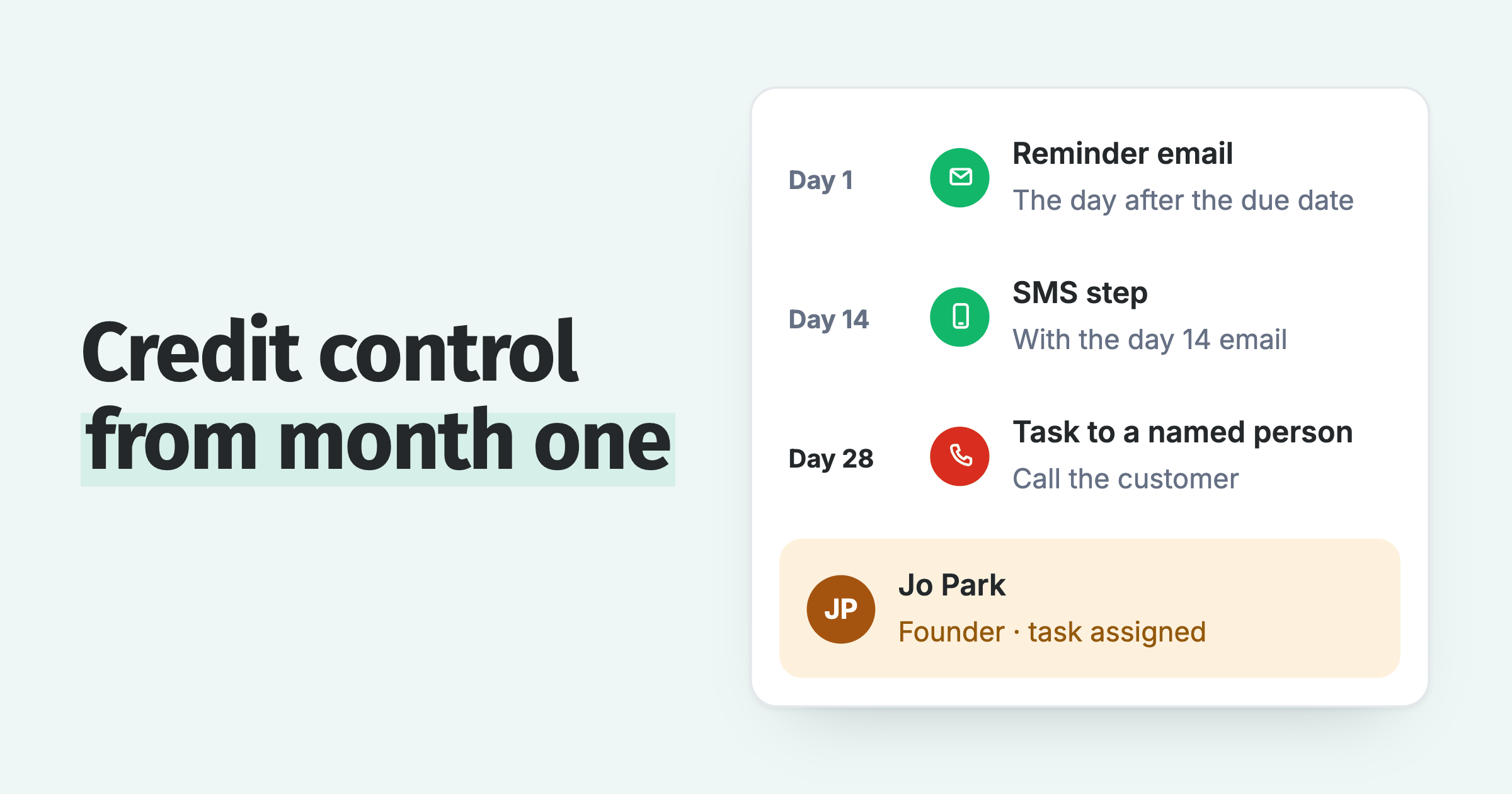
| After the last level | Repeats the highest level | Opens a task for the account owner |
To compare tools on those gaps, see the seven questions in credit control software for Business Central.
Among the first businesses to use Paidnice's AI agent, which handles those replies, DSO fell by 70% on average after 3 months (Paidnice customer results).
The cost of the gap shows in the data. A reminder that repeats to a customer with four overdue invoices adds very little. A reply that sits unread for a week turns a promised payment into a level 3 reminder to a customer who already said when they would pay.
The reminder day itself matters. Overdue invoices are paid about 3 times as often on the day a reminder is sent as comparable overdue invoices with no reminder (about 12 in 100 against about 4 in 100), in Paidnice data. Businesses chose which invoices to remind, so this is a strong short-term pattern, not a controlled test. It was not measured on Business Central customers.
How Paidnice chases overdue invoices on Business Central
Paidnice connects to Business Central on the Custom plan, where an implementation specialist sets up the connection after a demo and the full Paidnice feature set runs on it.
- It syncs on changed records. Customers, sales invoices, sales credit memos and customer payments sync both ways. Paidnice rechecks the remaining amount on open invoices at each sync, so a payment applied in Business Central stops the chase at the next sync.
- It reads replies. Paidnice reads each reply to a reminder, logs a promised date as the expected payment date, and drafts the answer for a person to approve. See the AI collections agent.
- It uses more channels. Reminders go by email from your own domain, by SMS, and as posted letters. Email and SMS reminders carry a Pay now link.
- It sends before the due date. Reminders go out before the invoice is overdue, each with a Pay now link.
- It posts late fees to the ledger. Paidnice raises late fees as a sales invoice in Business Central, left unposted for your team to post or posted, as you choose at implementation. See late fees.
- It hands quiet accounts to a person. After the last step, Paidnice opens a task for the owner. See escalations.
To see it on your own ledger, read about Paidnice for Dynamics 365. To compare tools first, see our guide to credit control software for Business Central. For the monthly view of what is owed, see the monthly debtors meeting pack.
Common questions
Does Business Central send reminders automatically?
Yes. The Reminder Automation page creates, issues and emails reminders through the job queue on a Weekly, Monthly or Custom cadence, once an email account is connected.
How many reminder levels can you have in Business Central?
As many as you like per reminder terms code. Max. No of Reminders caps how many an entry can get, and past the last level Business Central repeats the highest one.
Can you use a different reminder text for each level?
Yes. Each level has its own beginning and ending text, and Customer Communication holds email and attachment texts for all levels or for one.
What is the difference between a reminder and a finance charge memo?
A reminder asks for payment and can add interest and fees. A finance charge memo charges interest or fees without asking for payment, and with Interest Calculation set to Closed Entries or All Entries it can charge interest on invoices that were paid late.
Can you cancel an issued reminder in Business Central?
Yes, before it is sent. Open Issued Reminders, select one or more, and use the Cancel action.
Does Paidnice work with Business Central?
Yes, on the Custom plan. Paidnice syncs invoices, payments and credit memos from Business Central and sends reminders by email, SMS and post.
Can Business Central send a reminder before the due date?
Not as a documented setting: Microsoft's docs describe no level that goes out before the due date. Paidnice sends reminders before the due date on Business Central. See before the due date.
Why are Business Central reminders not being emailed automatically?
Most often the automation has no Issue action, so Create builds drafts that Send never emails. Then check the email account, the Reminder Terms Filter and the job queue entry. See why Reminder Automation did not send.
Can you CC someone on a Business Central reminder?
Not natively. Use the Document Layouts addresses for extra recipients, or a mail rule, shared mailbox or extension for a copy. See who receives a reminder.
Does Business Central send reminders on its own?
Yes, through Reminder Automation on a job queue, once Create, Issue and Send actions are set and an email account is connected.
Can Copilot send reminders in Business Central?
Not today. Microsoft's Business Central release plans list no collections agent, and reminders still go out through Reminder Automation on the job queue.
Paidnice features in this article
About the editorial team
Ashley is a co-founder and lead developer of Paidnice and has built accounting software for more than 10 years. He builds the ledger connections that put reminders, late fees and payments into Xero, QuickBooks and ERPs such as NetSuite and Business Central. Before Paidnice he co-founded A2X, ecommerce accounting software for Xero and QuickBooks.
 App of the Year