



Summary
You can find your slowest payers on the Paidnice Dashboard: the Slowest Payers widget lists the 10 contacts whose oldest overdue invoice is most overdue. Tick them, click Send statements and confirm. Xero shows average days to pay on each contact page only, and Intuit says QuickBooks Online has no report for it.
- Slowest Payers: The widget ranks contacts by the age of their oldest overdue invoice, not by average days to pay.
- Usual lateness: Each contact's 0 to 100 credit score shows average days late or early when you hover over it.
- Bulk send: Statements to several contacts are queued as actions with no preview, and they wait while Safe Mode is on.
Month end is close and the overdue total is higher than you would like. A few customers are behind most of it, but the aged receivables report lists everyone. To send each of them a statement, you open one contact at a time.
Here is where Xero and QuickBooks Online stop, and how to find your slowest payers in Paidnice and send them a statement in one action.
Which customers pay you slowest, and how do you send them a statement?
Your slowest payers are the customers whose oldest invoice is most overdue. The Slowest Payers widget on the Paidnice Dashboard lists the top 10, and you send them all a statement from the same list.
There are two ways to read “slowest”. One is who is most overdue today. The other is who usually pays late, even when nothing is overdue this week. Paidnice shows them in two places, and this post covers both.
Free: Payment reminder email templatesCopy the reminder emails for before, on and after the due date.Can Xero or QuickBooks show your slowest payers?
Xero shows average days to pay on each contact page, with no report that lists it for every customer. Intuit says QuickBooks Online has no average days to pay report.
In Xero, the product idea “Show average Days to Pay by customer” asks for that report and is marked Accepted. Xero has replied that work on payment performance reports had started with suppliers, and that customer reports follow. Xero has launched the supplier days to pay report and lists a customer version as coming soon, with no date.
For QuickBooks Online, Intuit’s help article on an average days to pay report says there is no report on how long customers take to pay. It points you to an Excel export, or to a reporting app.
So in both ledgers, the list of slow payers is something you build yourself.
What does Slowest Payers show in Paidnice?
Slowest Payers is a Dashboard widget that lists the 10 contacts whose oldest overdue invoice is most overdue. It ranks by that one invoice’s age, not by average days to pay.
Each row shows two figures:
- The age of the oldest overdue invoice. The contact at the top has the invoice that is most days past due.
- The total overdue balance. It is converted to your base currency and is net of unallocated credit.
The header of the widget counts every contact with an overdue balance, so you can see how many sit below the 10 rows. The widget is next to Oldest Invoices, which lists the 10 most overdue invoices.
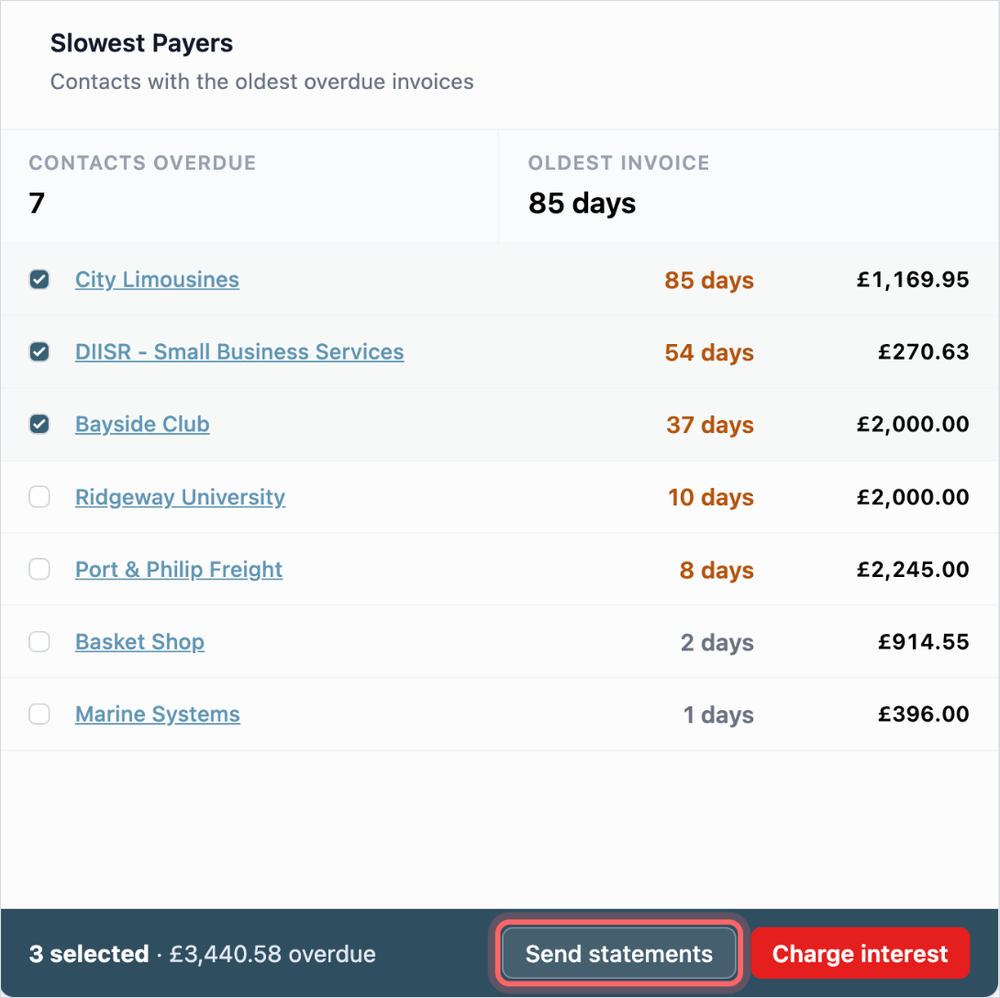
The rest of the Dashboard works in one currency at a time. Slowest Payers is the exception, because it converts each balance to base currency. The wider set of figures is on the accounts receivable reporting page.
Where do you see how late each customer usually pays?
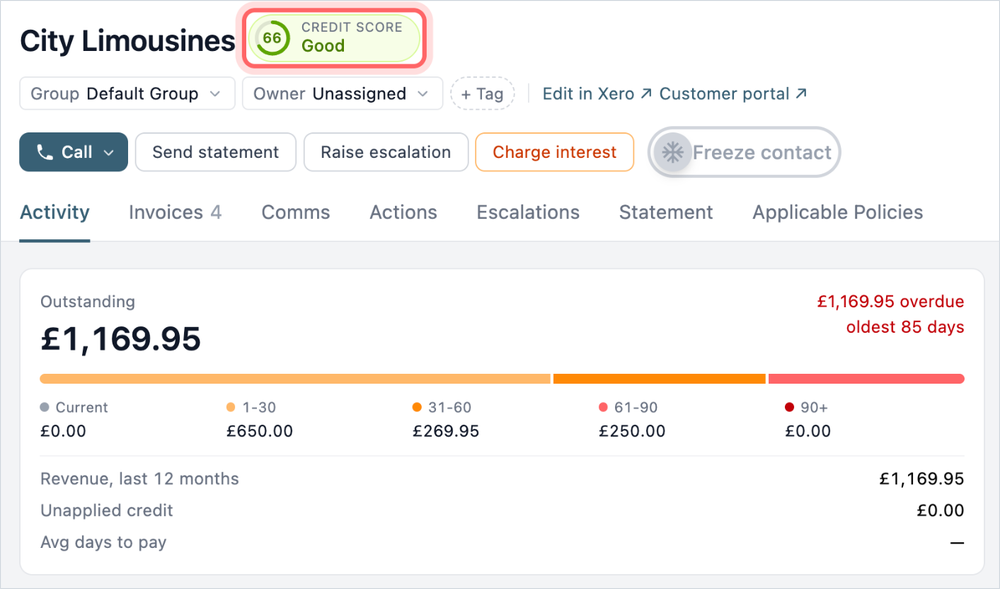
Use the credit score. Each contact has a score from 0 to 100, and when you hover over it Paidnice shows the average days late or early.
The score is built from your own invoices and payments in Paidnice. It is not an outside credit check.
It starts at 100 and loses up to 65 points for late payment, up to 20 for the share of the balance that is overdue, and up to 15 for the age of the oldest overdue invoice. Bigger and more recent payments weigh more.
There are five bands: Excellent from 80, Good from 60, Fair from 40, Poor from 20 and High risk below 20.
On the Contacts page, the Credit Score column sorts and filters, so you can list every contact with a score at or below a number you choose. Contacts with no score sort to the bottom.
For the whole book, the Dashboard has an Average days to pay tile. It covers invoices fully paid in the last 90 days, measured from the due date, and reads “On time” or a number of days late or early. Our analysis of late payment warning signs shows what those patterns tend to lead to.
How do you send statements to your slowest payers?
Tick the contacts in Slowest Payers, click Send statements, choose the template and attachments, and click Apply Now.
- Tick the contacts. Use the tick box on each row of Slowest Payers.
- Click Send statements. The dialog opens for the contacts you ticked.
- Choose the Email template. Pick a statement email template.
- Choose the Outstanding Statement Period. All Outstanding Items is the default.
- Choose the Statement attachments. Pick a PDF template, a spreadsheet template, or both.
- Click Apply Now. Paidnice queues an action for each contact.
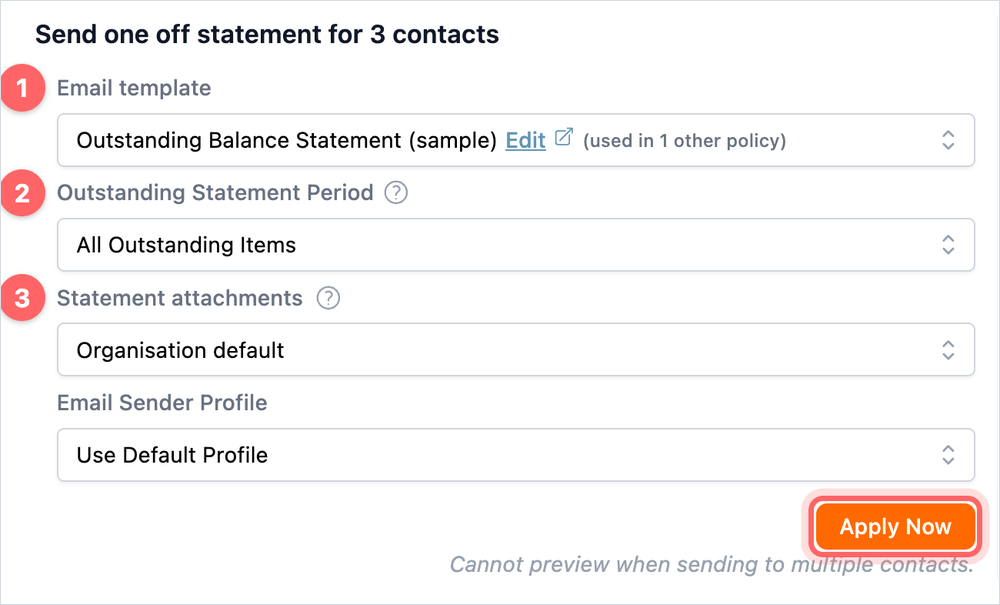
The same dialog opens from the Contacts page: tick contacts, open Quick Actions and click Send N statements. That route suits a list you built with the Credit Score filter. Paidnice remembers your last choices, so the next send starts from the same template and attachments.
A manual send ignores group membership and policy filters, so the ticked contacts decide who gets a statement.
What happens after you click Apply Now?
The statements are queued as actions and run shortly after. A send to several contacts has no preview.
The right side of the dialog lists what was queued, with a View on actions page link. It also lists what failed and why, for example “Contact is marked as frozen”. Three more rules apply:
- Safe Mode holds bulk sends. They wait until Safe Mode is off. Our post on how to pause every reminder explains the switch.
- Nothing outstanding means nothing sent. The action completes as Not Sent.
- One bulk send per type at a time. Paidnice asks you to wait while earlier statement actions are still pending.
To stop a bulk send that is still waiting, go to Actions, Manual Operations, Remove scheduled manual actions. This removes every pending manual action, not only the statements, and it does not undo anything already sent.
💡 Paidnice insight
We built the bulk send without a preview, so we tell teams to send one statement first. Tick a single row and Paidnice opens the normal send with a preview. Once that statement looks right, tick the rest.
A frozen contact is left out because a freeze blocks statements. See how to pause one customer.
Can you charge interest at the same time?
Yes. Charge interest sits next to Send statements in the widget and works on the same ticked contacts.
It is a separate bulk action with its own dialog, so you run it as a second step. If the interest for a contact comes to nothing, the action completes as No Interest Issued. Our guide to interest on statements covers when to charge it and what each market allows.
Frequently asked questions
Why does Slowest Payers show only 10 customers?
The widget is limited to 10 rows. Its header counts every contact with an overdue balance. For a longer list, use the Contacts page, sort or filter by Credit Score, and send from Quick Actions.
Can I preview a statement before a bulk send?
Not for several contacts. If you tick a single row, Paidnice opens the normal send dialog with Preview and Send Now. Use that to check the layout before you send the rest.
Is the credit score a credit check?
No. It uses your own invoices and payments in Paidnice and no outside data. A low score is a prompt to act, not an automatic action. You can change the weights and the bands under Settings, General, Advanced, Credit Score.
Can Paidnice send these statements every month without me?
Yes. A statement policy emails statements on a schedule, such as Monthly, and can be limited to overdue customers. See customer statements or the setup for automatic statements in Xero.
Does a bulk send work on the free trial?
Yes, while you have free actions left. The trial includes 20 free actions. When they are used, the Apply Now button reads Free Action Limit Reached.
Where do the other reporting figures live?
The Dashboard also shows total outstanding, total overdue, days sales outstanding and on-time payments. Our guide to credit control reporting in Xero sets out which figure answers which question.
Paidnice features in this article
About the editorial team
Ashley is a co-founder and lead developer of Paidnice and has built accounting software for more than 10 years. He builds the ledger connections that put reminders, late fees and payments into Xero, QuickBooks and ERPs such as NetSuite and Business Central. Before Paidnice he co-founded A2X, ecommerce accounting software for Xero and QuickBooks.

 App of the Year