

Summary
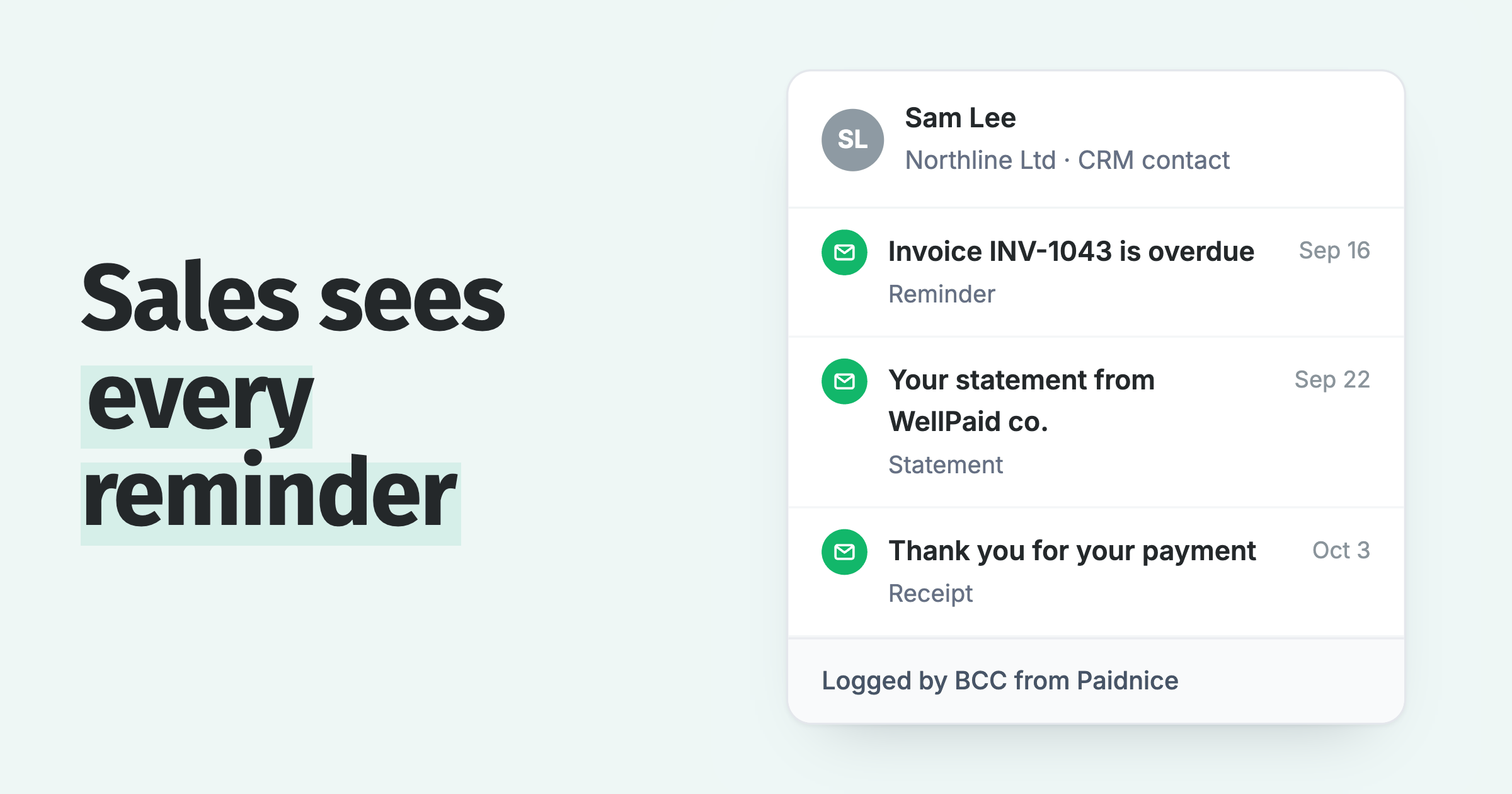
A QuickBooks CRM integration syncs customers, invoices and payment status between QuickBooks Online and your CRM, so sales can see what a customer owes. The reminders that customer received are a separate record. To put each one on the contact, send it with a blind copy to your CRM's logging address.
- What the sync covers: HubSpot's QuickBooks Online sync pairs contacts with customers and can sync invoices and credit memos in both directions.
- What it leaves out: Pipeline CRM shows whether an invoice is open, paid or overdue, which tells sales the invoice is late and nothing about what the customer was sent.
- How Paidnice fills it: Paidnice sends a blind copy of each reminder, statement and late fee notice to your CRM's logging address, on every plan.
You are about to call a customer about their renewal. The CRM contact shows the deal and, with QuickBooks synced, the invoice total. Nothing shows that finance sent four reminders and a late fee notice this month. Businesses waiting on unpaid invoices are owed an average of $17.7K, so the call is rarely a clean slate.
Here is what a QuickBooks CRM integration syncs, what it leaves out and how to put every reminder on the contact.
Does QuickBooks have a CRM built in?
QuickBooks Online has Customer Hub, Intuit's own CRM for leads, follow-ups and customer notes, with features that vary by plan. Teams already on HubSpot, Pipedrive, Zoho CRM or another CRM connect that instead.
Intuit describes Customer Hub as a 360-degree view of your history with every customer, covering notes, proposals, contracts and feedback. Contracts, e-signatures and Customer AI are listed for Plus and Advanced. Everything below is for teams whose CRM lives somewhere else.
What does a QuickBooks CRM integration sync?
A QuickBooks CRM integration syncs the records that make up a customer account: customers and contacts, invoices, credit memos and payment status. Sales and finance then work from the same balance.
HubSpot's QuickBooks Online data sync pairs contacts with customers, syncs invoices and credit memos in the direction you choose, brings across payments created after you connect, and shows payment information on the associated deal records.
Pipeline CRM's QuickBooks integration syncs company and customer names, contact details, proposals (mapped to QuickBooks estimates) and invoices both ways, while payment status flows from QuickBooks into Pipeline only.
Capsule's QuickBooks Online integration lets you view estimates, invoices, overdues and customer value inside Capsule. Method CRM runs a two-way, real-time sync of customer information and invoices with QuickBooks.
If you are still choosing between CRMs, what an accounts receivable CRM is and how to evaluate one covers the checks.
What does the sync leave out?
A sync tells the CRM that an invoice exists and whether it is open, paid or overdue. It does not tell the CRM which reminders, statements and late fee notices the customer has received.
Pipeline CRM shows whether an invoice is open, paid or overdue. From that status alone, sales cannot see which reminders went out, on which dates, with which attachment, or whether a late fee notice has been sent.
Those emails come from QuickBooks Online's own invoice reminders or from an add-on, and in either case they leave no trace on the CRM contact. The same goes for what QuickBooks' AI agents do with overdue invoices. Sales then makes the renewal call without knowing a late fee notice went out this week.
How do you log QuickBooks reminders on the CRM contact?
Copy your CRM's logging address into the BCC field of a Paidnice sender profile, apply that profile to your reminder, late fee and statement policies, and each email lands on the matching CRM contact.
Paidnice's CRM integration is the BCC field on a sender profile. Setup takes five steps:
- Copy the logging address from your CRM. The table in the next section says where each one keeps it.
- Paste it into a sender profile. In Paidnice, open Settings, then Sender Profiles, create or edit a profile and put the address in BCC.
- Apply the profile. Open the reminder, late fee or statement policy, go to More Options and choose that profile.
- Send a test. Create a test customer with the same email address in QuickBooks and in the CRM, add a test invoice, and press Action Now on the policy.
- Check the contact. The logged email shows the subject and body, the send time, the invoice and any attachment.
The customer never sees the BCC address. Draft mode logs the drafts you approve, Active logs the emails that go out automatically, and Inactive sends and logs nothing.
Which CRMs log by BCC, and which senders do they accept?
HubSpot, Pipedrive, Zoho CRM, Attio, Capsule and Nutshell all log an email sent to a private address, and each accepts mail only from sender addresses it already knows.
Each CRM checks the sender address before it logs a BCC. The table shows where each CRM keeps its address and who may send to it.
| CRM | Where to find the address | Who can send to it |
|---|---|---|
| HubSpot | Settings, Objects, Activities, Email Log & Track | A HubSpot user, a connected work email or an alias |
| Pipedrive | Settings, Email sync, Smart Bcc | Your account email, or extra addresses you add and verify |
| Zoho CRM | Setup, Channels, Email, BCC Dropbox | Verified addresses only |
| Attio | Account settings, Email and calendar accounts | Addresses tied to a workspace user |
| Capsule | Your name, My Preferences, Mail Drop Box | Addresses recorded on your Capsule user |
| Nutshell | [email protected] | Addresses Nutshell knows you send from |
If nothing appears in the CRM, check three things in order. First, the address in the sender profile. Second, that the customer's email in QuickBooks matches the CRM contact. Third, that your CRM accepts the address the reminder is sent from: look at the From address on the sender profile and add it where the table's third column asks for it. Paidnice's CRM guide has the setup steps.
What gets logged, and can you log only key accounts?
Paidnice copies every email sent under a policy that uses the BCC sender profile, attachments included, so reminders, late fee notices, statements and thank-you emails are logged. Sender profiles let you log only the accounts you choose.
BCC copies email, so a text message is not copied: SMS payment reminders for QuickBooks stay in Paidnice. Automatic customer statements for QuickBooks are logged like any other email, and a logged reminder carries its Pay now link as sent.
Replies go to the Reply-To address on the sender profile, so choose one your CRM already syncs and the customer's reply to the reminder lands on the contact too. A query raised in the customer payment portal is not an email, so BCC does not log it, but on the Pro plan it fires a webhook (see the next section).
Make two sender profiles, one with the CRM address in BCC and one without, and apply them by customer group or policy. Your key accounts log to the CRM and everyone else stays out of it.
Can Paidnice create notes or tasks in my CRM?
No, Paidnice writes no notes or tasks into a CRM. On the Pro plan, a webhook can pass events to Zapier or Make, and a step there creates the note or task.
Either way, accounts receivable automation for QuickBooks keeps the follow-ups on schedule, and the CRM shows what went out.
QuickBooks CRM integration questions
Is there a CRM that integrates with QuickBooks?
Yes, several do. HubSpot has its own QuickBooks Online data sync, Pipeline CRM and Capsule publish theirs, and QuickBooks itself has Customer Hub. Each syncs a different set of records, so check the list before you connect.
Does HubSpot have a QuickBooks integration?
Yes. HubSpot's data sync is available with all products and plans and covers contacts, products, invoices and credit memos. Reminders sent from Paidnice reach the HubSpot contact through its BCC address.
Which plans include CRM logging?
All of them. Sender profiles with a BCC address are on every Paidnice plan. Webhooks, for the task route through Zapier or Make, are on Pro.
 App of the Year