



Summary
After a collection call, record each thing the customer agreed against the invoice it belongs to: a payment promise for a date, an invoice query for a problem, a payment plan for installments. In Paidnice you save all three with the call, and a call transcript fills in most of the fields for you to check.
- One form: The Log call form has an Agreed on the call section with Payment promise, Invoice query and Payment plan.
- Filled from the call: Items marked Heard on the call carry the invoice, the promised date, the amount and the query reason that Paidnice took from the transcript.
- Effect on reminders: A promise holds reminders until the promised date, an open query stops them, and a payment plan switches the invoice to payment plan reminders.
You put the phone down after a long call with a customer. They will pay one invoice on Friday, they say another has the wrong price, and they asked to spread a third over three payments. You have three follow-ups in your head and one notes field in front of you.
Here is what to record after a call like that, where each item goes in Paidnice, and what Paidnice fills in from the call for you.
What do you record after a collection call: a promise, a query or a plan?
Record what the customer agreed, against the invoice it belongs to. A date to pay is a payment promise, a problem with the invoice is an invoice query, and a request to pay in parts is a payment plan.
| What the customer said | What to record | What it holds |
|---|---|---|
| “I’ll pay Friday” | Payment promise | The promised date and the amount |
| “That invoice is wrong” | Invoice query | The reason, the details and your next action |
| “Can I pay in three?” | Payment plan | The frequency and the number of payments |
One call can hold all three, on different invoices. A note such as “spoke to the customer, will pay soon” loses the difference, because each item needs a different next step from you. If you still keep a spreadsheet, our call log template has the columns.
Free: Payment plan calculatorSplit an overdue balance into instalments, with dates and interest.Where do you record it in Paidnice?
You record it on the Log call form. After a call from Paidnice, click Record activity in the call window. For a call made on another phone, click Log call in the contact’s activity feed.
The form starts with Call Outcome and the note. After a call with a transcript, the outcome is prefilled and the summary is already in the note.
Below that is the Agreed on the call section, with three items: Payment promise, Invoice query and Payment plan. You can add any mix of them, each against its own invoice. If you have not placed a call from Paidnice yet, start with your first call.
💡 Paidnice insight
A customer with more than one overdue invoice can give a different answer for each, so Agreed on the call takes several items. Every item sits on its own invoice. A query on one invoice does not stop reminders on the others.
What does Paidnice fill in from the call?
When the call has a transcript, Paidnice fills in what it heard and marks each item Heard on the call. You check every item before you save. A call with no transcript gets no suggestions.
The fill rules are specific:
- The invoice. Paidnice matches invoice numbers said on the call against the contact’s open invoices. If nobody named one, it uses the only open invoice, or leaves the choice to you.
- The promised date. It is worked out from the day of the call, so “next Friday” becomes a date.
- The amount. It is filled only if the customer said an amount at or below the amount due. Otherwise the full amount due is used.
- The query reason. It is mapped to Pricing, Quantity, Quality, Not received, Duplicate or Other, with one sentence in Details.
- The plan. Frequency and Payments are filled only if they were mentioned on the call.
A transcript exists only when you turn on transcription during the call. Your team places the call, and AI writes the summary and these suggestions afterward. The in-app calling page shows the call window.
How do you save a promise, a query and a plan together?
Check each item, add any that are missing, and click Save call and follow ups. Paidnice saves the call first, then each follow-up, and opens the payment plan builder last.
- Check the outcome and the note. Edit Call Outcome and the note so they match the call.
- Check the payment promise. Confirm the invoice, Promised date and Amount. Tick Also set the expected payment date if you want the date on the invoice.
- Check the invoice query. Confirm Reason and Details, then set Next action and Due date for your team.
- Check the payment plan. Confirm Frequency and Payments, or leave them blank and decide in the plan builder.
- Add or remove items. Click Add or Another invoice for more. Remove an item with its cross.
- Click Save call and follow ups. The call saves first, then each promise and query.
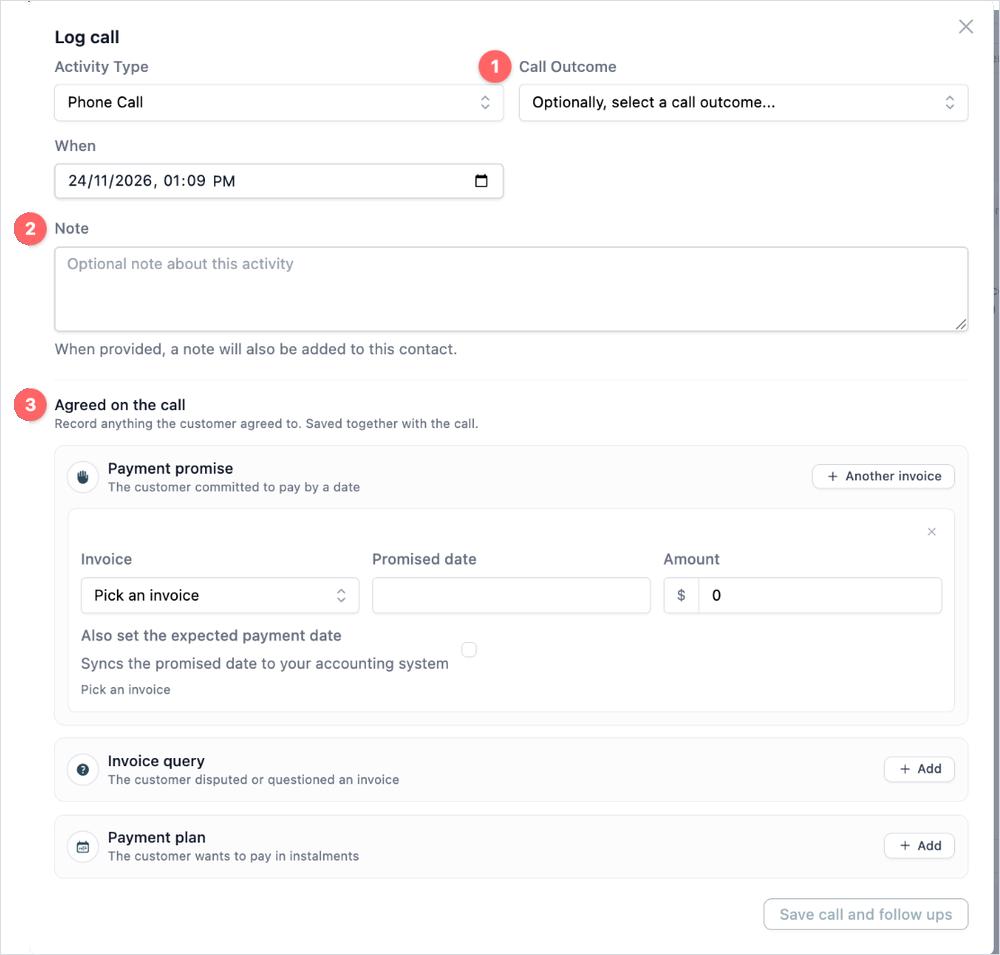
If one item fails, the call and the other items stay saved. The failed item shows an error with Save again, and saving again creates no duplicates.
The payment plan builder opens last, with the frequency and the number of payments filled in. You check the installments and any surcharge there before you create the plan. See how plans work on the payment plans page.
What does each one do to reminders?
A promise makes reminders wait, a query stops them, and a plan replaces them. Each effect applies only to the invoice the item is saved on.
| You saved | What happens to reminders | Good to know |
|---|---|---|
| Payment promise | Policies with Skip when payment promised on do not run before the promised date | The setting is on by default |
| Invoice query | Policies with Skip while a query is open on do not run for that invoice | Statements still list the invoice |
| Payment plan | Other invoice policies stop, and only payment plan reminders run | Plan reminders ignore the promise skip |
Both skip settings cover reminder emails, SMS alerts, escalations, late fees and discounts. Our guide to pausing reminders after a promise explains the setting policy by policy.
If the promised date passes without payment, Paidnice marks the promise broken after the grace period, which is one day by default. See what to do next in a broken promise to pay. For the query itself, our guide to a disputed invoice covers the customer side.
Where does it show afterwards?
Each item shows on its invoice, on the Calls page and on the contact. Anyone who opens the invoice later can get from the promise or the query back to the call.
- On the invoice. The Payment promise or Query row shows From a call with View transcript.
- On the Calls page. The call carries a badge for each item, such as “Payment promise · INV-1010”.
- On the contact. The call shows in the contact’s activity. The note is saved as a contact note and sent to your accounting system.
With Xero, the expected payment date is written to the invoice. With QuickBooks Online, the date stays in Paidnice. To report on promises per team member, see promises by collector.
What are the limits?
The form saves what you confirm, and the suggestions have gaps. Check these before you rely on them.
- “Already paid” is not picked up. If the customer says they paid, record that yourself.
- Only 50 invoices are matched. Paidnice matches against the contact’s 50 oldest open invoices by due date.
- One of each per invoice. An invoice holds one open promise and one open query. A second one will not save until the first is canceled or resolved.
- One amount is not split. An amount the customer gave for several invoices is not divided between them.
- Closing the form drops follow-ups. If you close the form without saving, the unsaved items are gone, with no warning.
- Queries need permission. Saving an invoice query needs the Settings permission set to Editor.
- Plans need setup. The invoice’s group needs a payment plan configuration, and payment plans need a Pro plan.
Frequently asked questions
Can I record a promise for a call I made on my mobile?
Yes. Click Log call in the contact’s activity feed and add the items under Agreed on the call. A call made outside Paidnice has no recording, so you fill in every field yourself.
Does a payment promise from a call go to Xero or QuickBooks Online?
The call note goes to your accounting system as a contact note. If you tick Also set the expected payment date, the date is written to the invoice in Xero. On QuickBooks Online, the date is kept in Paidnice only.
Can I change a promise after I save it?
An invoice holds one open promise at a time. Cancel the open promise on the invoice, then record the new one. The canceled promise stays in the invoice timeline.
Do reminders still go out on a queried invoice?
Policies with Skip while a query is open on do not run for that invoice while the query is open. Statements still list the invoice, so the customer sees the full balance.
Do I need a Pro plan to record what was agreed?
Calling is on every plan with an active paid plan. Payment plans need a Pro plan, and the invoice’s group needs a payment plan configuration.
Paidnice features in this article
About the editorial team
Ashley is a co-founder and lead developer of Paidnice and has built accounting software for more than 10 years. He builds the ledger connections that put reminders, late fees and payments into Xero, QuickBooks and ERPs such as NetSuite and Business Central. Before Paidnice he co-founded A2X, ecommerce accounting software for Xero and QuickBooks.
 App of the Year